This allows you to quickly set up a mouse cursor and have it interact with Game Objects (GO) and visual scripts (VS) from AGMaker.

How to install:
- Download the plugin and unzip it.
- Take the addons folder and copy it into your project (if you already have an addons folder, it will only add the necessary folder and won’t overwrite anything).
- Add a BindObjects node to the player and add the baz_mouse_cursor GO to its data.
v1.1:
baz_mouse_settings_v1.1.zip (27.2 KB)
→ Buttons covered by another object now respond to hover and click again.
→ The cursor now always draws above menus, UI, and screen shaders (CRT, blur, etc.) so it stays crisp.
→ The cursor now stays a constant size on screen regardless of camera zoom.
→ Hidden objects (or ones with a hidden parent) are no longer picked up as hover targets.
→ No more crashes when changing scenes/portals while dragging an object.
→ Added Mouse Priority so when two interactive objects overlap, the higher priority wins (defaults to 0).
→ Fixed a loading bug from inconsistent folder path capitalization (also fixes export and Mac/Linux).
v1.0:
baz_mouse_settings.zip (22.9 KB)
Video showing steps:
How to make a GO pickable (meaning you click on it, can drag it around, and drop it):
- Go to the desired GO scene.
- Add a BazMouseSettings node.
- Set the SwitchSettings to use.
- Choose Pickable from the Mouse Action Type.
Video showing steps:
How to make a GO clickable (meaning you click on it and can get a custom reaction through visual script):
- Go to Project → Project Settings → Input Map and create an input for the left mouse click.
- Go to the desired GO scene.
- Create a switch that will turn on when clicked (for use in VS).
- Add a BazMouseSettings node.
- Set the SwitchSettings node.
- Make sure Clickable is selected from the Mouse Action Type.
- Type in the name of the switch you created in step 2.
Video showing steps 2-7:
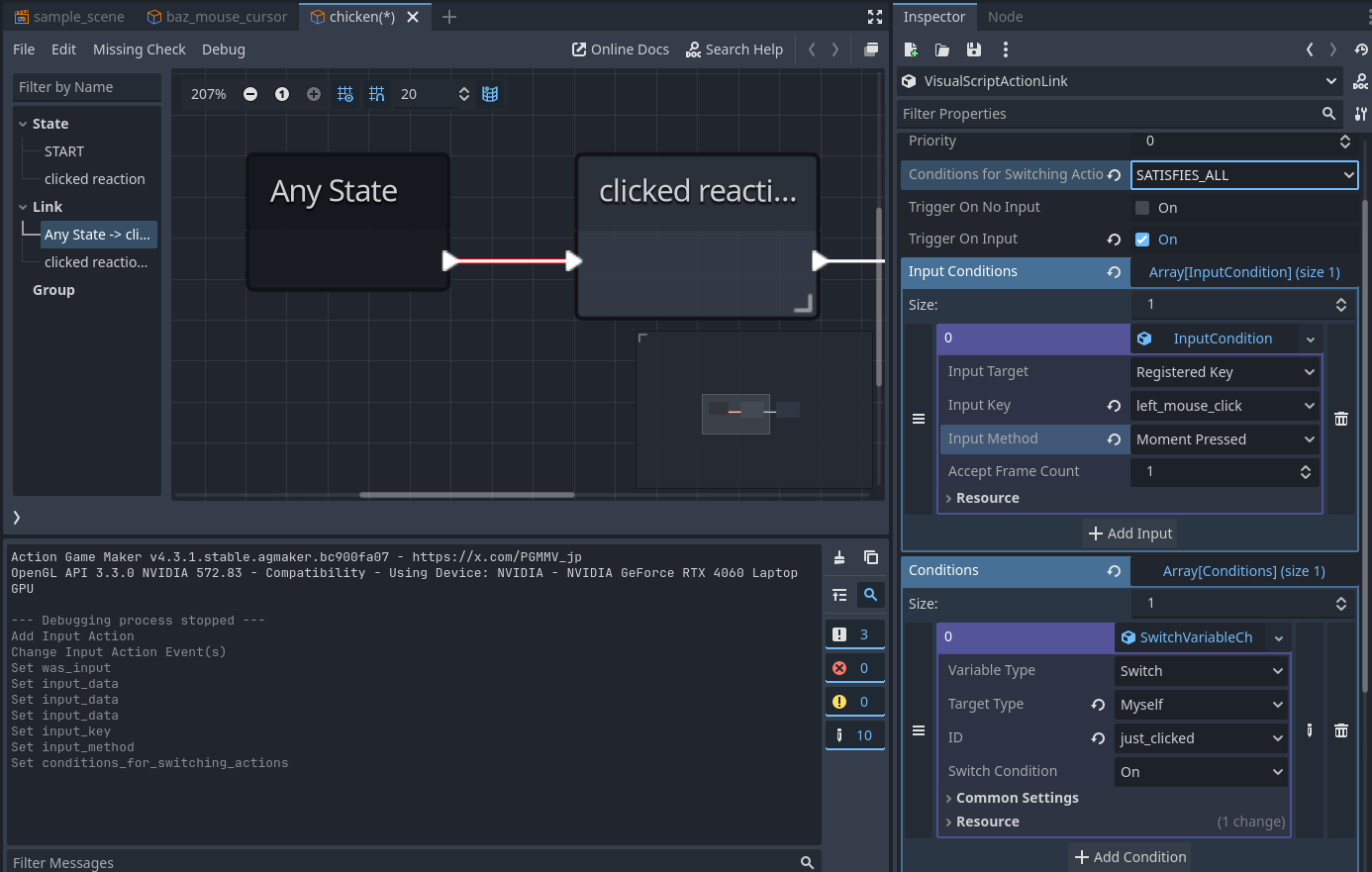
Now in the VS of the GO you can customize whatever reaction you want using both the input for left mouse click and switch as the condition:
How to customize cursor:
- Go to baz_mouse_cursor.tscn.
- Click on the AnimationPlayer.
- Find the animations and their respective keyframes and change them out as you please.
Video showing steps: