Creating the “Take Damage” Script
When the player is hit by an enemy attack, they should switch to the “Take Damage” state.
In this state, the player will:
- Be unable to control for a short period
- Be slightly pushed backward in the opposite direction of their facing
- Return to their previous state after a brief delay
Here’s a question:
Which states should transition to Take Damage?
Since the player already has 7 states,
creating a separate link from each state would be very tedious.
This is where AnyState comes in handy.

What is AnyState?
As the name suggests, AnyState means “from any state”.
Links created from AnyState will trigger regardless of the current state, as long as the condition is met.
Additionally, there’s a special execution action called TransferToAction,
which allows the character to bypass normal state transitions
and return directly to the state they were in before entering the current one.
Therefore, AnyState is ideal for handling universal reactions such as:
taking damage, stun, knockback, etc.
Creating the “Take Damage” State
In the “Take Damage” state, we will set up the following:
- Disable character movement
- Disable facing direction changes
- Move the character backward (opposite to their facing direction)
- Return to the previous state after 0.2 seconds
Steps
-
Right-click in the blank area to the right of AnyState, and select Add State.
-
Rename the newly created State001 to Take Damage.
-
In Select Animation, choose DamageTaken.

-
In the Inspector, expand Action Settings.
-
Check Ignore Input (Ignore Input)
and Ignore Facing Direction Change (Ignore Facing Direction Change).

- This ensures the player cannot move or turn during the damage reaction.
-
Click + Add Executable Action.
-
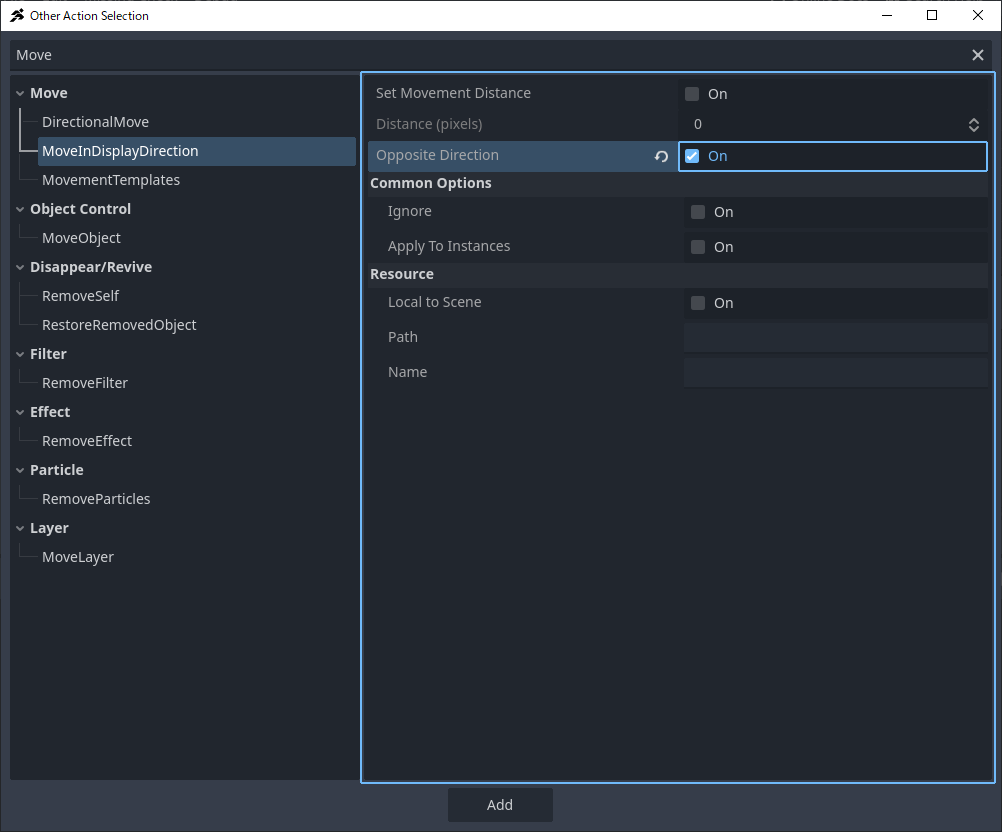
Select MoveInDisplayDirection.
-
Check Opposite Direction (Opposite Direction), then click Add.
- This will push the character backward.
-
Click + Add Executable Action again.
-
Select Wait.
-
Set Value to 0.2 seconds
(use half-width numbers).
- This means the knockback effect lasts for 0.2 seconds.

-
Click + Add Executable Action again.
-
Select TransferToAction, then click Add.

- If the execution order matches the image below,
the “Take Damage” state is complete.

Connecting AnyState → “Take Damage”
The method for creating a link from AnyState is the same as for regular states.
-
Right-click AnyState, and select Add Link.
-
Connect the link to the Take Damage state.
-
In the Inspector, click + Add Condition.

-
Select ContactWithAttackArea.
-
Check Select All Sides, then click Add.
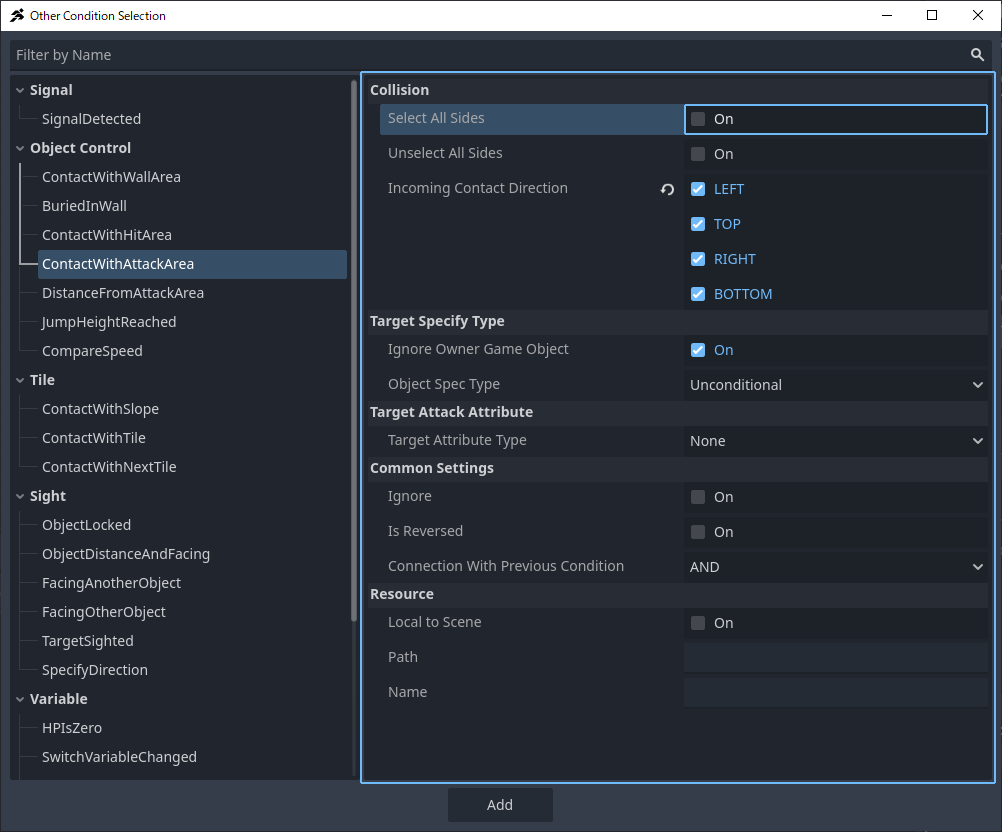
- Now, whenever the player collides with an enemy’s attack hitbox from any direction,
they will immediately switch to the Take Damage state.

Test Setup
Run the game and test.
When the player collides with an enemy, the following should occur:
- The player is temporarily unable to control
- The character flashes (invincibility effect activates)
- The character is slightly pushed backward
Troubleshooting Checklist
-
No flashing effect
→ Check the invincibility duration setting in BaseSettings -
No damage reaction at all
→ Verify that the condition for the AnyState → Take Damage link is correct -
Reaction occurs but behaves incorrectly
→ Double-check the execution action order and settings in the Take Damage state
 Related link: