Tutorial: "ACTION GAME MAKER from Scratch" Chapter 3

Chapter 3: Let’s Learn How to Shoot and Defeat Enemies

Objectives of Chapter 3

In Chapter 2,

“We created a simple stage where the player character can walk and jump”

was achieved.

This time, we will explain how to reach the point where “the player defeats enemies with shots.”

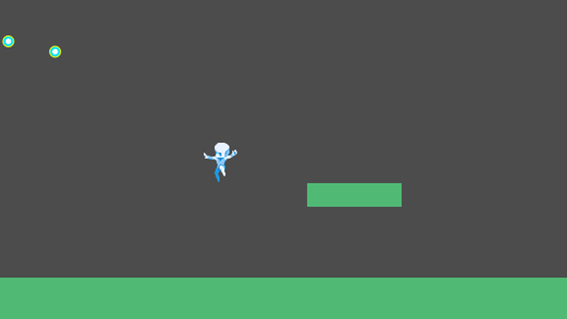
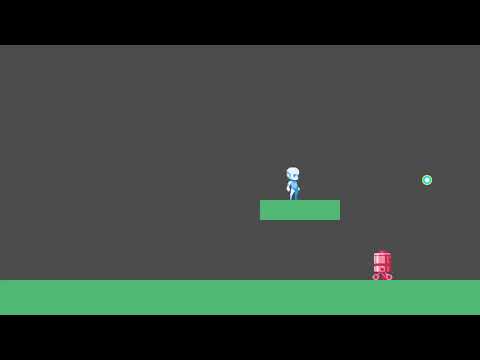
The completed image for Chapter 3 looks like this:

Planning How to “Defeat Enemies with Player Shots”

Let’s first consider how to build this.

The player will likely need a “Shot” state, and since we need to launch bullets, we also need to create a “Bullet” object.

Additionally, since the “Enemy” object does not yet exist, we will need to create it as well.

In Chapter 3, we will aim to create the “Bullet” object, add a “Shot” state to the player, and finally create the “Enemy.”

Defeating an “Enemy” involves implementing a “Attack” process that deals damage. However, in “ACTION GAME MAKER,” there are dedicated systems prepared for handling attacks and taking damage. Therefore, before we begin actual development, let’s learn about this system.

“ACTION GAME MAKER” - “Attack” and “Taking Damage”

Attack Hit

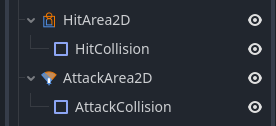
Do you remember the HitArea2D/HitCollision and AttackArea2D/AttackCollision components on the player object?

In “ACTION GAME MAKER”, damage processing is triggered when the AttackCollision of an AttackArea2D collides with the HitCollision of a HitArea2D.

Furthermore, Godot’s CollisionLayer and CollisionMask features allow you to adjust whether collisions “hit” or “do not hit.”

CollisionLayer and CollisionMask

As explained in the previous section on “Wall Detection,” Godot allows you to control collisions using the CollisionLayer and CollisionMask features. As the name suggests, these add depth to collision detection by using layers.

You configure layers and masks using a settings panel like the one below:

It is easiest to understand this as: Layers indicate where an object is, and Masks indicate which layers an object wants to collide with.

For example, an AttackCollision with a Mask of 1 and 2 cannot hit a HitCollision that only has Layer 3. This can be used to prevent your own attack from hitting itself.

Damage Processing

When an attack hits, damage processing occurs automatically. It subtracts the attack power of the attacking object (configured in BaseSetting) from the HP of the defending object.

Afterward, by setting “Invincibility” (also configurable in BaseSettings), you can make the object immune to damage for a certain period.

Let’s Create a “Bullet” Object

Now that the explanation of basic attack processing is complete, let’s actually create a bullet.

The “bullet” object will also be a game object, so the basic creation method is the same as for the player. Set an image, adjust movement speed, and create logic using visual scripting.

The one difference is that it is not an object controlled by a controller. Therefore, while movement processing is required, for a “bullet” that is fired, movement can be added via the “Fire Bullet” action, so there is no need to create movement processing on the “bullet” side itself.

Now, let’s create and configure the object.

Creating a “Bullet” Game Object

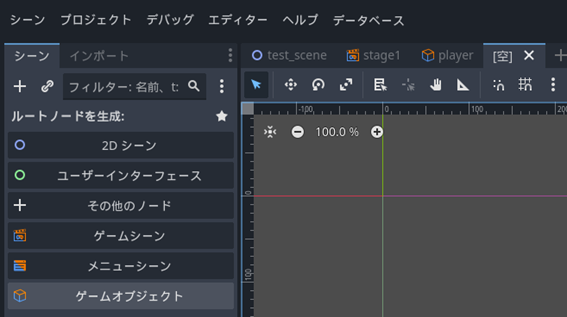
  1. Open the New Scene tab and select “Game Object” under Generate Root Node.

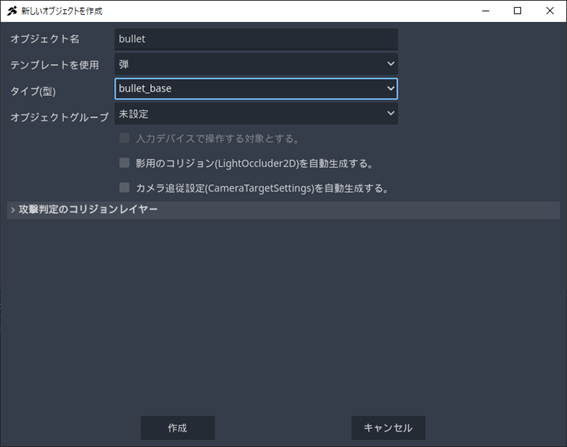
  1. In the “Create New Object” window, set the object name to bullet, use the template: Bullet, and set the Type (Class) to bullet_base.

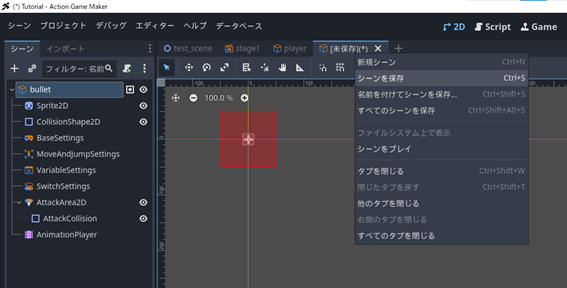
  1. Since the bullet object template will be loaded, right-click on [Unsaved (*] and save it. Keep the name as is and save it as bullet.tscn.

Configuring the “Bullet” Image and Animation Settings

Let’s add an image to the “bullet”. You can set up “Animation” to create a cooler bullet, but for now, let’s keep it simple and create a bullet without animation. Therefore, it is sufficient to set the image as the texture for the Sprite2D.

  1. Right-click the image below to download it:

bullet

  1. Drag and drop the downloaded bullet.png from your PC into the File System.

  1. In the Scene window, select Sprite2D and drag and drop bullet.png into the Texture field.

Adjusting the “Bullet” MoveAndJumpSettings

Since we want the bullet to move faster than the player, let’s change it. The player’s speed is 300, so let’s set it to 600.

  1. In the Scene window, select the MoveAndJumpSettings node.

  2. In the Inspector properties, set both the horizontal and vertical movement amounts to 600.

Adjust the Hitbox for “Bullets”.

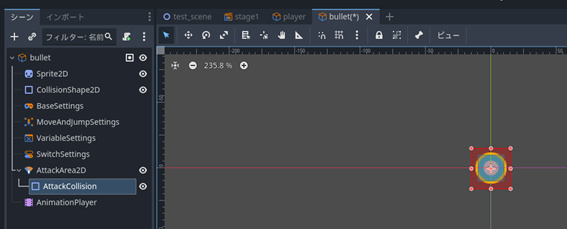
Set the Collision Layer and Mask for “AttackArea2D”.

By default, this object’s layer is 1, and its mask is 1, 2. This means it will collide with objects on layers 1 and 2… but actually, the player also has layer 1 and mask 1, 2. If left as is, the bullet will collide with the player the moment it is fired. To prevent this, change the layer to 3 and the mask to 3.

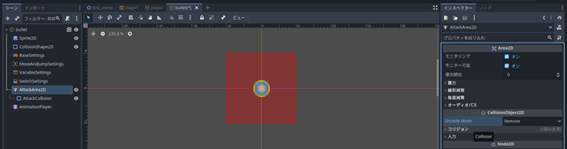
  1. Select “AttackArea2D” in the Scene window.

  2. In the Inspector window, click to expand the “Collision” property.

  1. The panel to select the Collision Layer/Mask will appear. Change the layer from 1 to 3, and the mask from 1, 2 to only 3. This will prevent the attack from hitting the player.

Adjust the Size of “AttackCollision”.

Currently, the attack hitbox is much larger than the bullet, so let’s make it smaller.

  1. Select AttackCollision in the Scene window.

  2. In the Editor view, drag the four corners of AttackCollision to adjust it to be slightly larger than the bullet.

Let’s set up the script for the “Bullet”.

The CollisionShape2D for wall detection appears to be the correct size, so no changes are needed. With the basic settings complete, let’s create the script.

It would be ideal if the bullet could disappear when it “hits an enemy,” “hits a tile,” or “goes outside the camera” while “moving.” In other words, we only need two states: “Moving” and “Disappearing.” Let’s create them right away.

Attaching the Script

  1. Select the Bullet (GameObject) node.

  2. Click the :scroll:+ (Attach Script) button in the top-right corner of the Scene window.

  1. Since no changes are needed, click Create to generate bullet.vs.

Setting the “Moving” State

We will reuse the default State 001 to create the “Moving” state. As mentioned earlier, since the logic for moving is handled by the side that fires the bullet, no action settings are required.

  1. Select State 001.

  2. In the Inspector window, change the title to “Moving”.

Creating the “Disappearing” State

  1. Right-click to the right of “Moving” and select “Add State”.

  1. Select the newly created “State 001” and set the title to “Disappearing” in the Inspector.

  2. Continue by clicking “+ Add Action” in the Inspector.

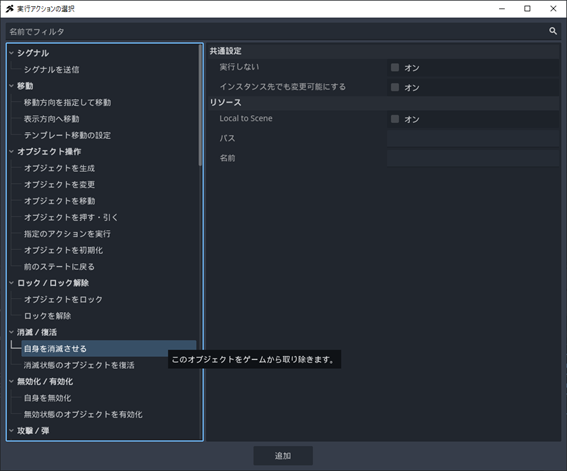
  1. Select the action “Destroy Self” and click “Add”.

  1. Now, when this state is entered, the bullet will disappear.

Linking “Moving” to “Disappearing”

Let’s make it so that if the bullet hits an enemy, a tile, or goes outside the camera while “moving,” it transitions to “Disappearing.” In this case, there are “three” conditions, but we can handle multiple conditions with a single link by connecting them using “AND” and “OR.”

In this scenario, we can handle the three conditions by connecting “Hits Enemy” OR “Hits Tile” OR “Goes Outside Camera.”

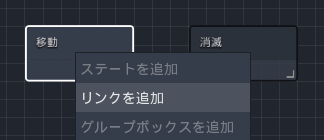
  1. Right-click the “Moving” state and add a link.

  1. Click the “Disappearing” state to connect the link.

  2. Select the created link and click “+ Add Other Condition” in the Inspector.

  1. Select “Object Collision and Contact”.

  2. Check all directions and press the “Add” button.

  1. Click “+ Add Other Condition” again.

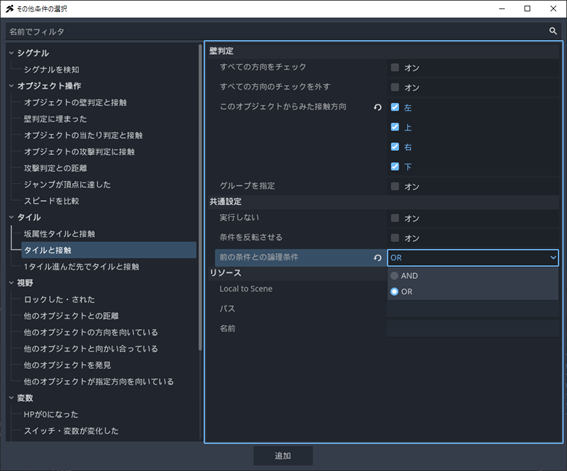
  1. Next, select the “Contact with Tile” condition.

  2. Check all directions again, set the logical condition with the previous condition to “OR”, and press the “Add” button.

  1. Add the third condition using “+ Add Other Condition”.

  1. Scroll through the conditions and select “Outside Camera Range” from the others.

  2. Set the Data Type (Target Object) to “Self,” set the logical condition with the previous condition to “OR,” and add it.

  1. Verify that the other conditions are set as shown below. If AND/OR is incorrect, you can change it by clicking the AND/OR icon.

Note: Is it okay to use “AND” for “Contact with Object Collision”?

As the name suggests, AND/OR refers to the logical condition with the “previous” condition and is evaluated against the condition one level up. “Contact with Object Collision” is at the very top, so there is no previous condition; therefore, it doesn’t matter whether you use AND or OR. However, if you rearrange the order and place it in the second level or below, it will function as AND, so it is safer to set it to OR.

The bullet settings are now complete. Let’s “Save the Scene”.

Modify the “Player” Object to Enable Shooting Bullets

To enable shooting bullets, four steps are required:

A. Create an animation for firing bullets.

B. Add and configure the “BulletsSettings” node for bullet settings.

C. Add and configure the “Connector” node as the firing point for bullets.

D. Create a state in Visual Scripting to “Fire Bullets.”

Let’s begin by adding the firing animation.

A. Creating a Bullet Firing Animation

First, let’s consider the situations where we want to fire a bullet. Since this is Rockman-style, it seems we will need three types of states: “firing while standing still,” “firing while walking,” and “firing while jumping.” Each of these will require its own animation… however, the “Movement” animation we have already created can actually be used as-is for shooting, as it is already an animation of running while holding a hand up.

Therefore, let’s create two animations: “Ground Firing” and “Air Firing.”

The creation process is exactly the same as in the previous part. Since there is already a loaded sprite sheet with actions suitable for firing, let’s use those.

The steps to create an animation are: “Add Animation,” “Insert Keyframe,” and “Load into Animation Set.”

Creating the “Ground Firing” and “Air Firing” Animations

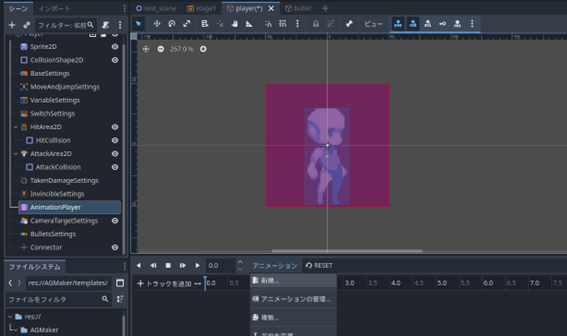
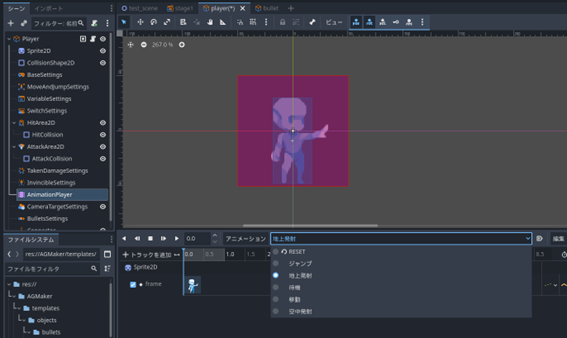
  1. Set the Scene tab to “player” and change the Editor view to 2D.
  2. Select the AnimationPlayer node.
  3. Click “Animation” in the bottom animation window to create a new animation.
  4. Let’s name the animation “Ground Firing.”
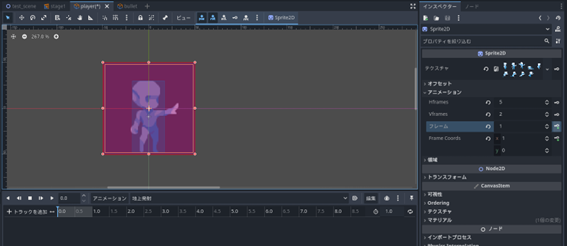
  5. Select Sprite2D and expand the “Animation” property in the Inspector.
  6. Set the frame to 1 (the image with the left hand held forward) and press the “:key:+” (Add Keyframe) button.
  7. Create the track with the “Create RESET Track” checkbox unchecked.
  8. Repeat steps 2~3 to create the “Air Firing” animation.
  9. In the Sprite2D Inspector, set the frame to 2 (the animation of holding the hand forward while in the air) and press the “:key:+” (Add Keyframe) button to insert the key.

Registering to the Animation Set

  1. Select the Player (GameObject) node.

  2. Click the “Batch Load Animations” button in the Inspector to load them.

  1. “Ground Firing” and “Air Firing” will be added.

B. Adding and Configuring the “BulletsSettings” Node

  1. Click the “+” (Add Child Node) button in the top-left corner of the Scene window.

  1. Select the BulletsSettings node and click “Create”.

  1. In the Inspector window, on the right side of the bullet list, click Array[BulletData] to expand it.

  2. Click the “+ Add Bullet” button.

  1. Click “” to select a new BulletData.

  1. Click the created BulletData to expand it.

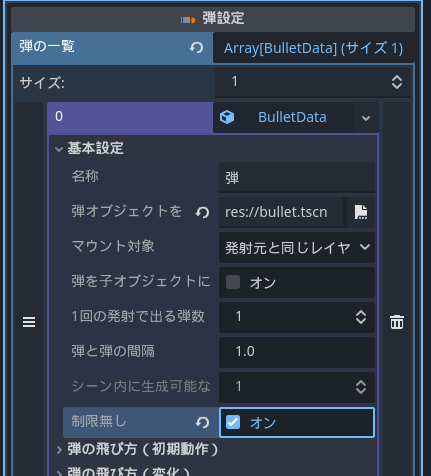
  2. Expand the Basic Settings section, click the :page_with_curl: icon on the right side of “Assign Bullet Object”, and select the bullet.tscn file you created earlier.

  1. In the Basic Settings section, set “No Limit” to “On”. This option allows an unlimited number of bullets to be displayed within the scene.

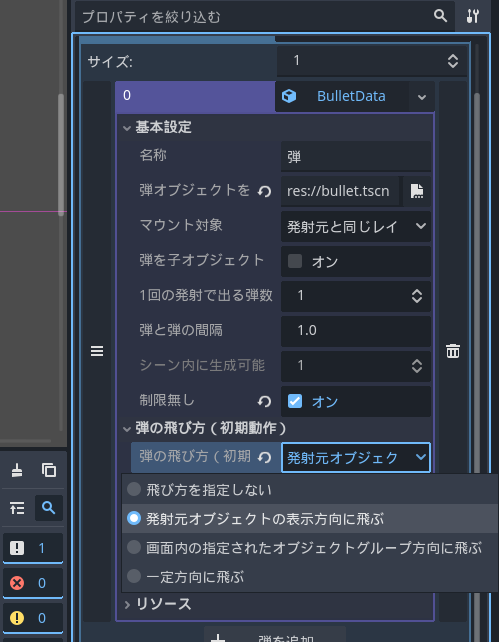
  1. Expand the “Bullet Movement (Initial Behavior)” section.

  2. Set “Bullet Movement (Initial Behavior)” to “Fly in the display direction of the firing object”.

  1. Now, you can launch “bullet.tscn” “in any quantity within the screen” and “in the display direction of the firing object”.

C: Adding and Configuring the “Connector” Node

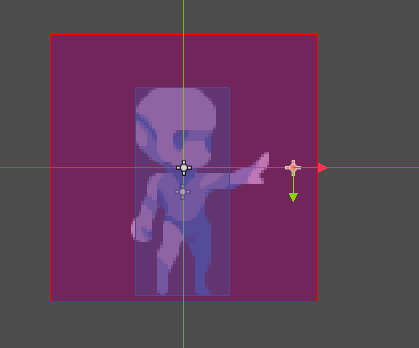
A connector node is used in visual scripting to specify a “location,” such as the origin of a projectile or the spawn point of an object. Since this connector represents the launch point, it should be positioned at the tip of the hand in the aiming animation.

  1. Select the Player (GameObject) node.
  2. Click the “+” (Add Child Node) button in the top-left corner to open the “Create Node” window.
  3. Select the Connector node and click “Create.”

  1. Select the AnimationPlayer node and switch the animation to “Ground Launch.”

  1. Select the Connector node again.
  2. Switch the editor tool to “Move Mode.”

  1. Move the connector’s ✛ to the tip of the palm. The connector configuration is now complete.

D. Let’s Add a State for Firing Bullets.

Next, let’s add a state for firing bullets. Of course, we need two states: “Ground Fire” and “Moving Fire,” as well as “Air Fire,” but “Air Fire” will require some ingenuity.

From “Ground Fire” and “Moving Fire,” it’s fine to transition back to “Idle” or “Move,” respectively. However, if we transition “Air Fire” back to “Jump,” the character will jump again immediately, causing them to climb with every shot.

Therefore, we need an air state other than “Jump.” In this case, let’s split the “Jump” state into two: “Jump” and “Air.” The “Jump” state should transition immediately to “Air,” and while in “Air,” it should transition to “Idle” upon touching a tile.

By returning to “Air” from “Air Fire,” we should avoid any issues.

Let’s get started right away.

Let’s Create the “Ground Fire” and “Moving Fire” States

  1. Create a new state to the left of “Idle.”
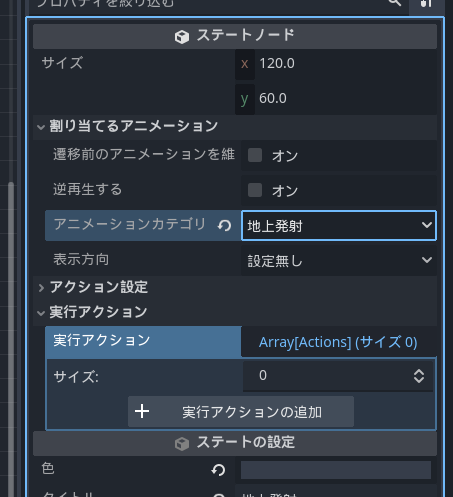
  2. Rename the created “State001” to “Ground Fire.”
  3. Specify the “Ground Fire” animation set in the Animation Category Name.
  4. Click “+ Add Execution Action.”
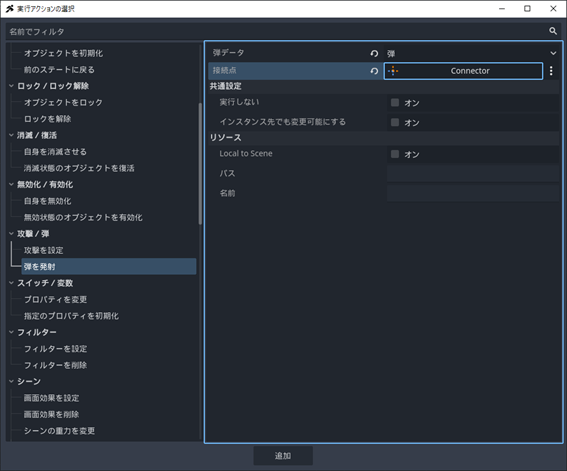
  5. Select “Fire Bullet” as the execution action.
  6. Specify the “Bullet” created earlier in the Bullet Data.
  7. Click the “Assign” button on the connector.
  8. The “Select Node” window will appear; specify the Connector created earlier.
  9. Once you confirm that the “Bullet” data connector “Connector” is correctly specified, click “Add.”
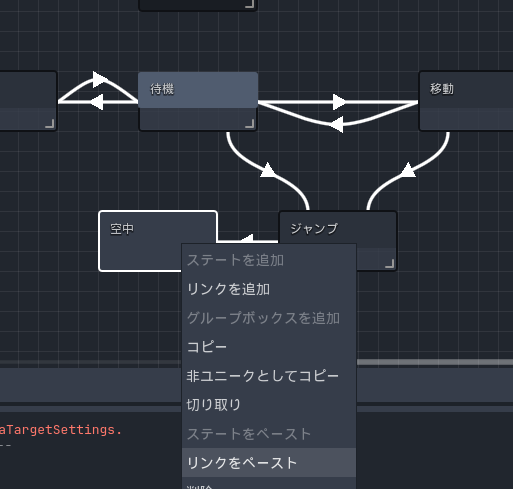
  10. Next is “Moving Fire.” Since “Moving Fire” is exactly the same state as “Ground Fire” except for the animation, let’s copy and reuse it. Right-click the “Ground Fire” state and select “Copy.”
  11. Right-click to the right of the “Move” state and select “Paste State.”
  12. A state named “Ground Fire (1)” will be created; rename it to “Moving Fire” in the Inspector.
  13. Enable the “Maintain Animation Before Transition” checkbox. Since the “Moving Fire” animation is identical to the source “Move” animation, there is no need to change it; this option can be used in such cases.

Connect “Idle” and “Ground Fire,” and “Move” and “Moving Fire” States

It seems the system will work if we transition from “Idle” and “Move” to “Ground Fire” and “Moving Fire” when the “Attack” button is pressed, and then return to “Idle” and “Move.” To prevent excessive rapid-fire, we can set it to return after “0.3 seconds,” which should provide a good balance.

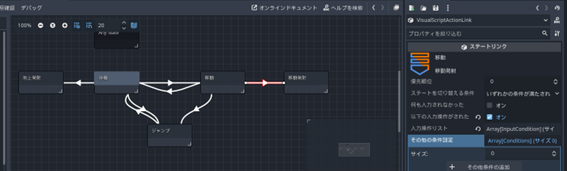
  1. Right-click the “Idle” state to create a link and connect it to the “Ground Fire” state.
  2. In the properties, turn on the checkbox for “When the following input is received.”
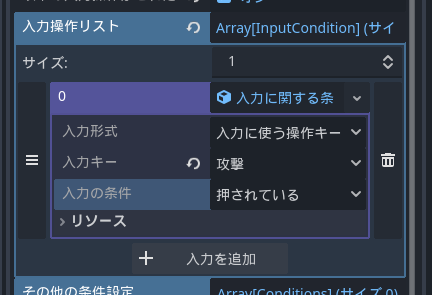
  3. Click on the right column of the Input Operation List, “Array[InputCondition…],” to expand it.
  4. Click “+ Add Input” to add an input field.
  5. Click “” to add a “New Input Condition.”
  6. Click “Input Condition” to expand it.
  7. Change the “Input Key” to “Attack.”
  8. Right-click the created link and select “Copy.”
  9. Right-click the “Move” state and select “Paste Link.”
  10. Connect the link to the “Moving Fire” state. Now the links from “Idle” and “Move” are ready; next are the return links.
  11. Right-click the “Ground Fire” state, select “Add Link,” and connect it to the “Idle” state.
  12. In the Inspector, click the “+ Add Other Condition” button.
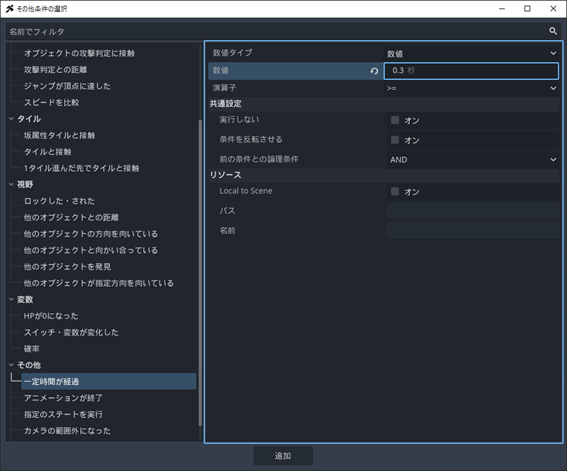
  13. Select the “Time Elapsed” condition in the Other section.
  14. Change the seconds value in the “Number” item from 1 second to 0.3 seconds.
  15. Once the addition is complete, right-click the link and select “Copy.”
  16. Right-click the “Moving Fire” state, select “Paste Link,” and connect it to “Move.” If it looks like the following, the ground firing state is complete.

Let’s Test if Bullets Can Be Fired Correctly on the Ground

We have completed three stages of setup: creating the “Bullet” object, configuring “BulletSettings,” and creating the “Ground Fire” and “Moving Fire” scripts. Now, finally, we can test bullet firing. Let’s try a test play.

  1. Click the “Run Project (F5)” button in the top right of the editor.
  2. If configured correctly, pressing the X key in the “Idle” or “Move” state should fire a bullet. However, since there were many settings, there might be omissions. Let’s recheck using the list below.

Checklist for when things don’t work well

Animation does not play: Review the settings for each firing state. If there are no issues, also check the AnimationPlayer animations.

Animation plays, but no bullet is fired: Review the settings for the “Fire Bullet” action.

Bullet is fired but doesn’t move or goes in a strange direction: Review “BulletSettings.”

Once you confirm there are no issues, close the test play using the close button.

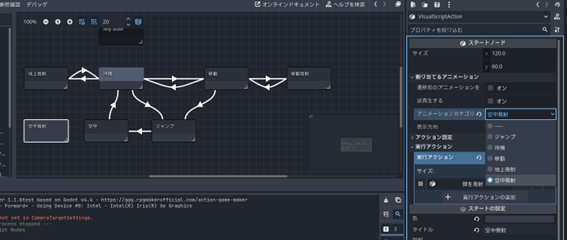
Split the “Jump” State into “Jump” and “Air” States

Now, let’s split the “Jump” state.

  1. Add a “State” to the left of “Jump.”
  2. Rename “State001” to “Air.”
  3. Set the Animation Category Name to “Jump,” and the “Air” state is complete.
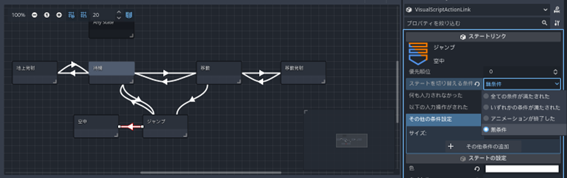
  4. Next, connect the links. Right-click the “Jump” state, select “Add Link,” and connect it to “Air.”
  5. In the Inspector, set the “Condition to Switch State” to “Unconditional.” “Unconditional” is a condition that switches states immediately without any conditions. Since the “Jump” action happens instantly and the “Jump” animation only switches frames, this condition works.
  6. Next, change the link returning from “Jump” to “Idle” to a link returning from “Air” to “Idle.” Select the link.
  7. Right-click and select “Cut.”
  8. Right-click the “Air” state and select “Paste Link.”
  9. Connect it to “Idle,” and it’s complete.
  10. Just in case, perform a test play to check if the flow from jumping to landing works correctly.

Create the “Air Fire” State and Connect it to “Air”

The “Air Fire” state and link conditions are the same as the ground firing ones created earlier, except for the animation, so let’s reuse them.

  1. Right-click the “Ground Fire” state and select “Copy.”
  2. Paste it to the left of “Air.”
  3. In the Inspector, rename “Ground Fire (1)” to “Air Fire.”
  4. Change the “Animation Category” to “Air Fire.”
  5. Copy the link from “Idle” to “Ground Fire.”
  6. Right-click “Air,” select “Paste Link,” and connect it to “Air Fire.”
  7. Copy the link from “Ground Fire” to “Idle.”
  8. Right-click “Air Fire,” select “Paste Link,” and connect it to “Air.”
  9. That completes it. Perform a test play again to check the operation. Success is achieved if pressing Z to jump and then pressing X while in the air fires the bullet correctly.
Create an “Enemy” Object

Next, let’s create an enemy object. We will create the simplest type of enemy, one that only moves left and right. The process is the same as creating a character: create a scene, create images and animations, configure each node, and create a script.

Creating the “enemy” Game Object

  1. Return the editor view from “Script” to “2D”.

  2. Create a new scene tab, generate a root node, and select “Game Object”.

  1. Create the object with the following settings: Object Name: enemy, Use Template: Character, Type: 2DSprite Character Base, Object Group: Enemy.

  1. Right-click on Unsaved and save it as enemy.tscn.

Image and Animation Settings for “enemy”

Use the following image prepared here. Like the bullet, this is a simple character consisting of a single image. Unlike the bullet, which was a perfect circle and did not require flipping, this enemy is asymmetrical left-to-right and must be flipped according to its movement direction. Since the automatic flipping feature uses the animation set functionality, set the texture using Sprite2D just like the player, create the animation with AnimationPlayer, and create the animation set with the enemy node (GameObject).

Sprite2D Settings

enemy

  1. Right-click the image above and save it to your PC.

  2. Drag and drop the file into the file system to load it.

  1. Select the Sprite2D node.

  2. Drag and drop enemy.png into the Texture property in the Inspector. Since this image does not require frame splitting, the image settings are now complete.

Adjusting Wall Collision Size with CollisionShape2D

The current wall collision size appears to be significantly smaller than the configured sprite, so let’s enlarge it.

  1. Select CollisionShape2D in the Scene window.

  2. Drag the orange circles at the four corners of the wall collision to adjust them to a suitable size.

AnimationPlayer Settings and Creating an Animation Set

To configure the animation set, we will create an animation. However, unlike the player, there is no need to switch frames, so simply creating the animation is sufficient.

  1. Select the AnimationPlayer node.

  2. Click “Animation” in the bottom center window and select “New”.

  1. Enter “Move” as the new animation name and create it. Since no input is required for the tracks, the animation is now complete. Next, we will create the animation set.

  1. Select the enemy (GameObject) node.

  2. Click “Assign AnimationPlayer” in the Inspector.

  3. Confirm that the AnimationPlayer is correctly assigned and press the OK button.

  1. Press the “Load All Animations” button in the Inspector.

  2. Expand the animation set and confirm that “Move” is correctly configured.

Adjust the “BaseSettings” of “enemy”

Enemies must be defeatable through attacks, so let’s set their HP and invincibility duration.

Setting “HP”

  1. Select the BaseSettings node.

  2. Change the “HP” and “Max HP” in the Inspector from 1 to 3. This way, receiving 3 damage will reduce HP to 0.

Setting “Invincibility”

“Invincibility” is a setting that prevents HP from decreasing for a certain period after taking damage. Without this setting, there is a risk of taking continuous damage the instant an attack hits.

Since the player’s bullet firing interval is set to 0.3 seconds, an invincibility duration of around 0.2 seconds should be fine. If the invincibility duration is set to 0.4 seconds, the second bullet of a double shot will miss. If it is exactly 0.3 seconds, there is a possibility that the second bullet will miss in scenes where the enemy is moving closer.

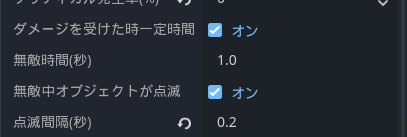
Additionally, the invincibility feature includes a function to flash the object during the invincibility period to indicate the duration. Since the invincibility duration is 0.2 seconds, setting it to flash at 0.1-second intervals should make the flashing visible.

  1. In the Inspector, change the “Invincibility Duration (seconds)” property from 1 second to 0.2 seconds.

  2. Change the “Flash Interval (seconds)” property, located just below it, from 1 second to 0.1 seconds.

Adjust the “Hitbox” for the “enemy”.

Next, let’s set the “Hitbox” for the “enemy”. Since the collision layer of the “Bullet” object has been changed to “3”, we need to set it to match layer “3”.

Set the collision layer and mask with “HitArea2D”.

  1. Select the “HitArea2D” node.
  2. Expand the “Collision” section in the Inspector.
  3. Change the layer to 3 and the mask to 3. This will allow it to collide with the “Bullet’s” “Attack Hitbox”.

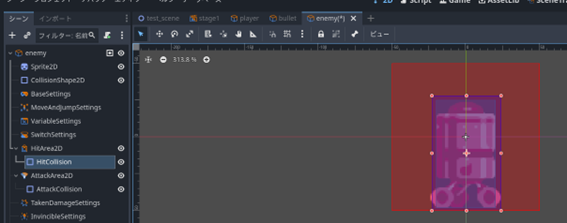
Adjust the size of “HitCollision”.

The current HitCollision seems too large, so let’s make it a bit smaller.

  1. Select HitCollision in the Scene window.
  2. Drag the orange circles at the four corners of the wall hitbox to adjust the size to be slightly larger than the wall hitbox.

Adjust the “Attack Hitbox” of the “enemy”.

Next, regarding the “Attack Hitbox,” it is fine if it hits the player. Unlike projectiles, the player’s collision layer remains at its default, so no changes are needed there. Let’s just adjust the size of the Collision.

  1. Select AttackCollision in the Scene window.

  2. Drag the orange circles at the four corners of the wall hitbox to adjust them to a size equivalent to the attack hitbox.

Set up the “enemy” script.

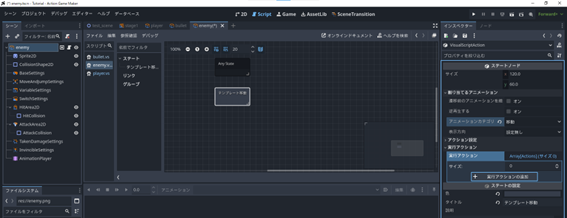
Since the “enemy” only moves left and right, it is sufficient if it can move left and right and be destroyed when its HP reaches 0. Simply put, you only need three states: “Move Left,” “Move Right,” and “Disappear.” However, this time we can use the “Template Movement” action, which allows automatic setup of simple movement.

Therefore, create two states: “Template Movement” and “Disappear,” and set a link so that the enemy disappears when its HP reaches 0.

Attaching the Visual Script

  1. Select the enemy (GameObject) node.

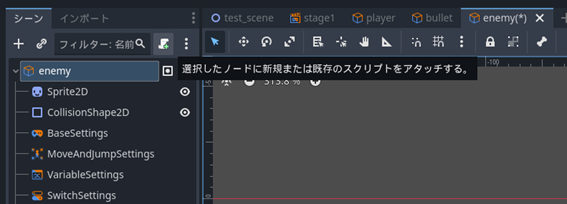
  2. Attach the script using the “Attach Script” button.

  1. Create it with the name “enemy.vs” as is.

Creating the “Template Movement” and “Disappear” States

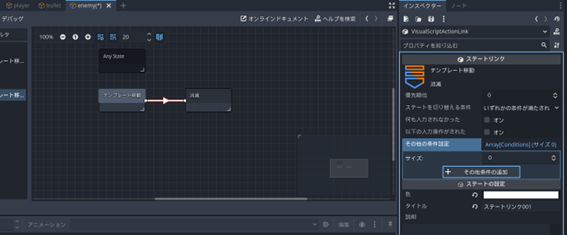
  1. Rename State 001 to “Template Movement.”

  2. In the Inspector, set the Animation category to “Movement.”

  3. Click the “+ Add Execution Action” button.

  1. Select “Template Movement Settings.”

  2. Set “Movement Time” to 3 and turn on “Do Not Fall Off Edges.” This will make it move for 3 seconds or reverse direction if there is a ledge it would fall off.

  1. Click “Add.”

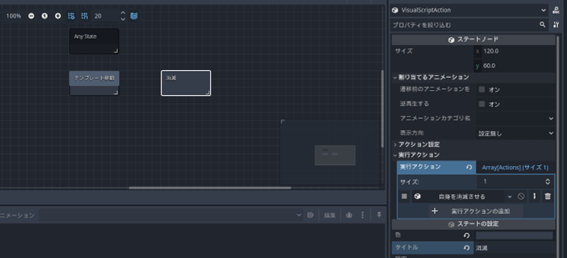
  1. Next, right-click the space to the right of the “Template Movement” state and select “Add State.”

  2. Rename State 001 to “Disappear.”

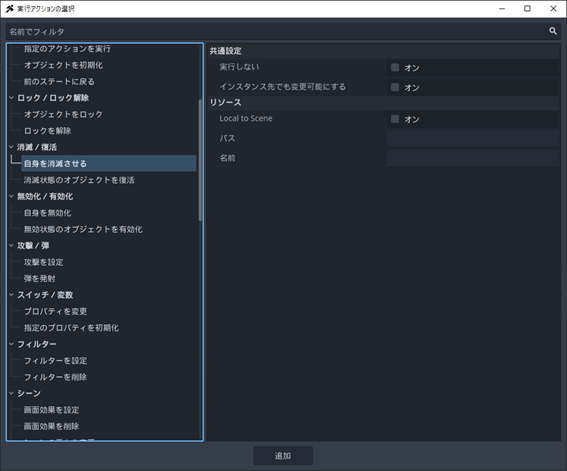
  3. Click the “+ Add Execution Action” button.

  1. Select “Destroy Self” and add it.

  2. If it looks like the following, the state settings are complete.

Create a Link from “Template Movement” to “Disappear”

  1. Right-click the “Template Movement” state, select “Add Link,” and connect it to the “Disappear” state.

  2. Click the “+ Add Other Conditions” button in the Inspector.

  1. Select “HP Reached 0.”

  2. You can keep the settings as they are (Data Type: Self) and add them.

  1. If it looks like the following, the setup is complete.

Place “enemy” in the “stage1” Scene

Now that the enemy settings are ready, let’s place it in stage1 and test it. Place it on the same layer as the Player.

  1. Change the Editor view from Script to 2D.

  2. Switch the Scene tab to stage1.

  1. Select the Player node in the Scene window.

  2. While keeping it selected, drag and drop “enemy.tscn” from the File System to the right of the Player.

  1. Once placed, try testing the game.

If you confirm that the enemy moves left and right every 3 seconds and disappears after being hit by a bullet three times, you have succeeded.

Checklist when it doesn’t move

When the enemy doesn’t move left and right: Check the “Template Movement” state.

When the enemy reverses but doesn’t flip: Recheck the animation set of the enemy node and the animation specification in the “Template Movement” state.

When the enemy disappears after being hit by a single bullet: Recheck the “HP,” “Max HP,” and “Invincible” settings in enemy’s basesettings.

When bullets don’t hit: Check the CollisionLayer/Mask of [enemy’s “HitArea”] and the CollisionLayer/Mask of [bullet’s “AttackArea”].

When bullets don’t disappear: Check the link from “bullet” movement to the Disappear state and the action in the Disappear state.

Let’s add damage processing to the “Player”.

Now that we have achieved the goal of this section, “the player defeats enemies with shots,” the enemy has an attack hitbox, but the player does not react at all.

Furthermore, since the player also has an attack hitbox, they can defeat enemies by simply bumping into them.

Let’s adjust the player settings so they react when taking damage. We will add a “damage taken” animation, adjust the “invincibility time,” “hitbox,” and “attack hitbox,” and finally add a visual script.

Adding “Damage Taken” Animation and Animation Set

  1. Return the editor view to 2D and change the Scene tab to “player”.

  2. Select the AnimationPlayer node.

  3. From the animation button in the bottom window, select “New”.

  1. Enter “Damage Taken” and press OK.

  1. Select the “Sprite2D” node.

  2. The “Damage Taken” frame is prepared at the far right of the top row, which is Frame 4. Set the frame in the Animation property of the Inspector to 4.

  3. Click the :key:+ (Add Keyframe) button next to the frame.

  4. Uncheck the “Create RESET track” option and proceed with creation.

  1. The animation is now complete, so add it to the set. Select the Player (GameObject) node.

  2. Press the “Batch Load Animations” button in the Inspector.

  3. It may appear that the animation was not added, but it should be on the second page. Click the > in <1/2> above the Batch Load Animations button to switch to the second page.

  4. If “Damage Taken” is present, you’re all set.

Adjust Invincibility Time with “BaseSettings”.

Next, let’s set the invincibility time. For the player, a longer invincibility time is preferable. Let’s set the invincibility time to 1 second and the flicker interval to 0.2 seconds.

Additionally, to prevent the player from reacting to attacks during invincibility, we should configure the hit detection to disappear during this period. Although HP will not decrease during invincibility, the game still registers that an attack has hit.

  1. Select the BaseSettings node.

  2. Change the “Flicker Interval (seconds)” in the Inspector from 1.0 to 0.2.

  3. Expand the “Disable Hit Collision List” located below “Flicker Interval (seconds)” and click “Add Element”.

  1. Click the field and set “New DisableCollisionData”.

  2. The field will change to “DisableCollisionData”; click it to expand.

  3. Press the “Assign” button.

  4. The node selection window will appear. Select “HitCollision” and click OK. This will disable hit detection for 1 second when damage is taken.