This is a manual detailing how to configure animations for use in Visual Script.
Animation Setup Flow
- Create animation data in the AnimationPlayer node. マニュアル: AnimationPlayerノードの活用
- In the Game Object node, create an animation set and assign the created animation.
- In the Visual Script state, specify the animation set to play.
Why Are Animation Sets (AnimationSets) Necessary?
The animation system in ACTION GAME MAKER is designed to automatically switch animations based on the character’s facing direction. Therefore, each animation set can individually specify up to eight different animations corresponding to the eight directions.
Animation Set (AnimationSets) Configuration Screen
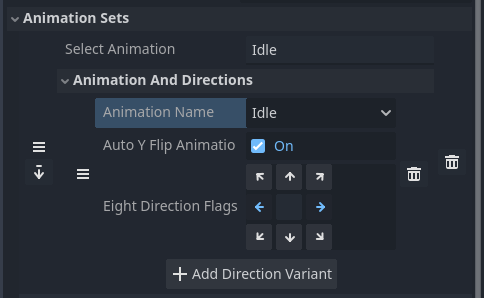
Select the Game Object node and expand AnimationSets > Animation and Directions in the inspector to access the detailed settings.
Explanation of Each Item
Animation Category Name (Select Animation): The name of the animation set as displayed in Visual Script.
Animation Name: Select the animation data created in AnimationPlayer here.
Auto Flip Animation: When enabled, this automatically flips the entire object along the Y-axis based on the left/right facing direction. This is useful when you only have animations for the right-facing direction but want to display the left-facing animation by flipping.
Direction Settings (Eight Direction Flags): Specify the facing directions where the selected animation data should be used.
In this example image, the Idle animation is used when facing right or left. Since Auto Flip Animation is enabled, the animation is automatically flipped when facing left.
Bulk Load Animations
Bulk Load Animations is a button that automatically configures animations in a format suitable for typical side-view characters.
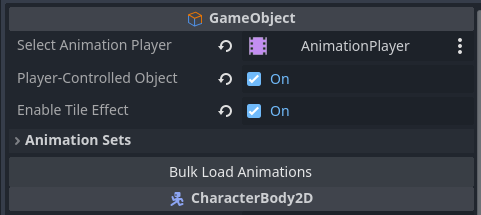
It automatically registers all animations registered in AnimationPlayer in the following format:
Animation Category Name (Select Animation): Same name as the animation data
Auto Flip Animation: Enabled
Direction Settings (Eight Direction Flags): Left/Right
For top-view characters or other cases where this setting is not suitable, manual customization is required.
Animation Set Customization Example (Side View)
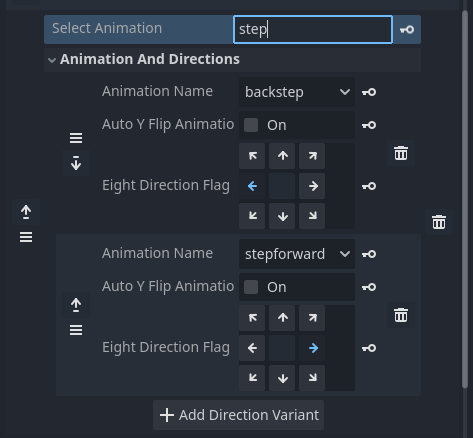
When You Want to Use Different Animations for Forward and Backward Movements
Disable Auto Flip Animation and create and register separate animations for backstep (moving left) and stepforward (moving right).
Animation Set Customization Example (Top View)
When Assigning Different Animations to Eight Directions in Top View
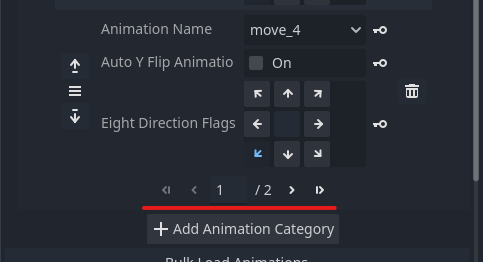
Disable Auto Flip Animation and create and register movement animations for each of the eight directions.
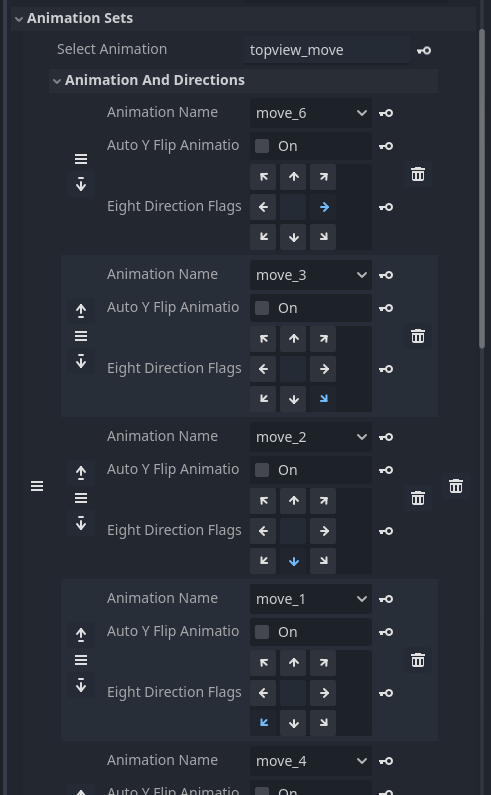
Note that when there are too many display items, additional pages are automatically added and switched. Typically, up to five directions can be displayed per page. Pages can be switched using the page navigation buttons at the bottom.