Prerequisite Note
Deep Dive into AGMaker: Using Custom Images as Fonts
Please ensure you have read the content of the above note.
Introduction
In AGM, we can use custom character images as fonts. In the previous note, we only covered ASCII characters. In fact, non-English regions, including CJK (Chinese, Japanese, Korean), contain a vast number of other characters (tens of thousands). This note will introduce how to use the same techniques from the previous note to create fonts using scattered Chinese character images (or special characters from other languages).
Software Version Reference
I am using Action Game Maker 1.0.21.
Preparation
- Prepare a font texture. You can use the word “Start” in a non-English language as an example.
- For instance, I prepared the two characters “开始” (meaning “Start” in Chinese).
- Ensure that each character in the drawn asset occupies the same dimensions, such as 32x12 or 32x24. There are no restrictions on specific dimensions.
- Combine all characters into a single image and save it in PNG format.
- Use Unicode lookup software or websites to find the Unicode code point for each character. This can be in decimal or hexadecimal format.
Chinese Characters “开始”
The following text consists of the two Chinese characters “开始”. It will be used for our upcoming tests. You can copy and use it directly.
开始
Unicode Code Point Lookup

Example Image
As an example, here is a sample image. This is the two characters “开始” that I just doodled.

Example Project
For convenience, I will upload the project file I have already demonstrated here.
sample_painting_custom_font_unicode.zip (931.4 KB)
Steps
Please follow the prerequisite note completely.
Only step 3.1 is different.
Method 1: Specify Multiple Independent Range Entries
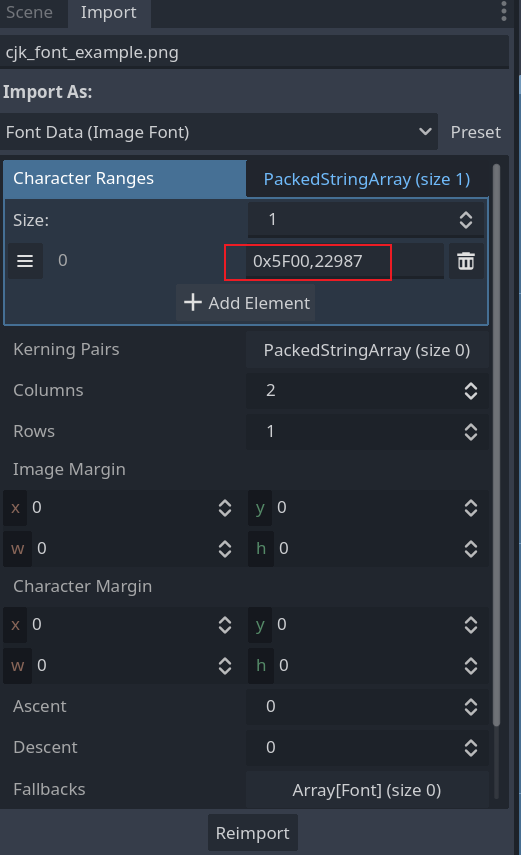
Since the Unicode code points of the characters in our image are not consecutive, we can add multiple range entries. Each range should contain only one code point.
Here, I entered 24320 (or 0x5F00) to represent the character “开”,
and 22987 (or 0x59CB) to represent the character “始”.
Refer to the screenshot below.
After completing all the steps in the prerequisite note, you can input the characters “开始” in any text input field and use this PNG image as the font.