Let’s Create a “State”.
Consider What States (Conditions) Are Needed
As explained in Chapter 1, the visual scripting in ACTION GAME MAKER is built by adding movements to character states (conditions) and linking those states together.
For this case, where the character walks around the stage and jumps, it seems sufficient to have just three states: “Idle”, “Move”, and “Jump”.
By connecting these three states and switching between them based on conditions, we can create the character’s movements.
So, let’s first prepare the “Idle”, “Move”, and “Jump” states and set up their movements and animations. The “Idle” state can likely reuse the already placed “State001”.
Creating the “Idle” State
Change the name of “State001” to “Idle” and configure this state to play the “Idle” animation set.
-
In the Script window, select “State001”.
-
At the bottom of the Inspector, change the “Title” from “State001” to “Idle”.

- Click the empty field next to the Animation Category Name under “Assign Animation” and set it to “Idle”. Now, the Idle animation set will play in this state.

Creating the “Move” State
The “Move” state needs to be created anew. Configure the newly created state to play the “Move” animation set.
-
Right-click on the blank area to the right of the “Idle” state.
-
A menu will appear; select “Add State”.
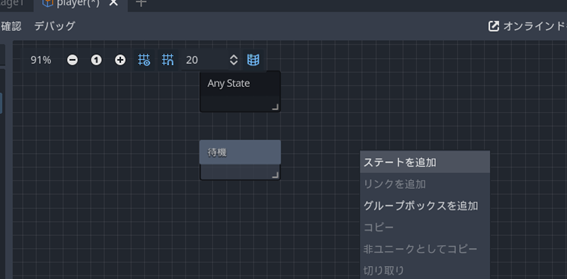
- A new “State001” will be created again; change its title to “Move”.

- Select “Move” in the Animation Category Name. Now, the “Move” animation will play in the “Move” state.

Creating the “Jump” State
In the “Jump” state, we need to set not only the animation but also the “Jump” movement (action).
-
Create a new state below the “Idle” and “Move” states.
-
Follow steps 2 to 4 from earlier, setting the title to “Jump” and the Animation Category to “Jump”.

- Expand the Action Settings and check the box for “Perform Jump Action”. Now, when the character enters the “Jump” state, it will perform the jump action.

Note: Don’t we need a setting like “Perform Move Action” for the “Move” state?
The character’s movement based on key input works through the key settings for movement configured in the previously set “MoveAndJumpSettings”. Since this setting applies universally across all states, there is no need to configure movement-related actions specifically within the “Move” state itself.