The “Module” feature allows you to extract and share parts of the Visual Script in ACTION GAME MAKER as a system.
How to Create a Module
- Open the Visual Script and select the portion you want to turn into a module.
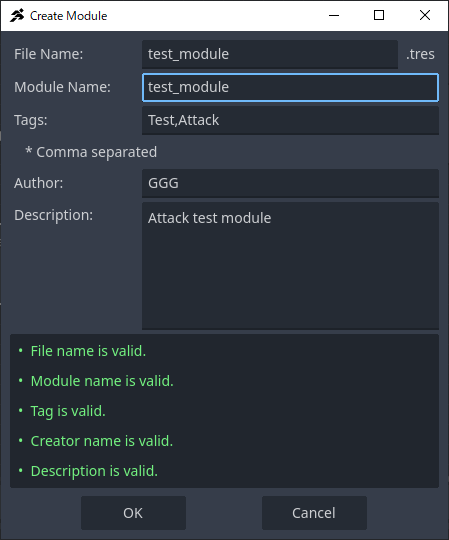
- Right-click the selected state and choose “Create Module.”
- Enter the module information in the input screen:
- File Name (File Name): Required, the name of the file.
- Module Name (Module Name): Required, the display name within AGMaker.
- Tag (Tag): Optional, tags for filtering within AGMaker. Multiple tags can be set, separated by commas.
- Author (Author): Required, the creator’s name. Used for display when sharing externally.
- Description (Description): Optional, a memo field.
- Once all required fields are filled, the alerts at the bottom will turn green. Click OK to create the module.
- The created module is saved in C:\Users\{User_Name}\AppData\Roaming\Agm\my_modules.
- Modules are stored globally on the PC, not per project, so they can be used in other projects as well.


How to Use a Module
- Open the Visual Script where you want to use the module.
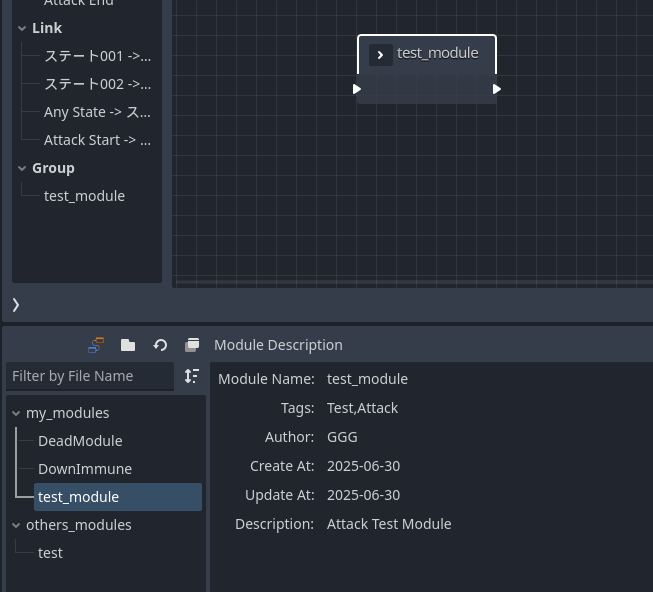
- Switch the bottom panel to the Module List (Module List) and select the desired module.
- Drag and drop the selected module into the Visual Script editor. The module will be imported as a “Group Box.”
- Expanding the Group Box reveals the Visual Script you previously created as a module.


Important Notes When Using Modules
Things That Cannot Be Saved in a Module
- Animation data set in states: Animation data is stored in separate files, so it cannot be saved. However, if you prepare an animation with the same name in advance, it can be inherited.
Things That Can Be Saved in a Module but Require Caution
- User variables/User switches set in actions: If the user variables/user switches specified in the module do not exist in the target object, new variables/switches will be automatically added.
Sharing Modules
How to Share with Others
You can share a module with others by sending the {Module Name}.tres file located in C:\Users\{User_Name}\AppData\Roaming\Agm\my_modules.
Also, take advantage of the dedicated category for sharing on RPG MAKER GUILD.
How to Import External Modules
By saving modules created by others in C:\Users\{User_Name}\AppData\Roaming\Agm\other_modules, they become available for use from the Module List.
Icon Descriptions in the Module List Panel
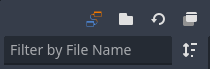
Orange/Blue icon: Opens the RPG MAKER GUILD.

File icon: Opens the My Modules or Other Modules folder in Explorer.

Float icon: Floats the Module List panel.

Sort icon in the search box: Allows you to choose the filter method between file name or tag.
