STEP 2: Let’s create the HP bar.
-
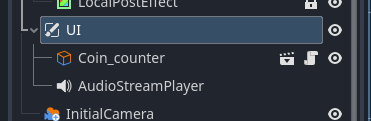
Open the gamescene tab and select UI.
-
Add a new node, ImageGauge. Objects that you want to always display without being affected by camera scrolling in UI, etc., should be created under the UI node.
-
Set the ImageGauge properties as follows. Set sampleplayer’s hp as the current value and sampleplayer’s max_hp as the maximum value. Note that Object_Sampleplayer.tscn is located in the sampleobject folder.
-
Continue by setting the TextureProgressBar properties of ImageGauge. Enable Nine Patch Stretch and set Left Limit: 10px, Right Limit: 10px. This allows you to scale the created bar without distorting its aspect ratio.
-
Set the texture for ImageGauge. Use the image located in the file system templates > objects > ui > interface > variation_02_Ornate. Set I_002_hp_horizontal_02.png for Under and I_002_hp_horizontal_03.png for Progress.
-
Adjust the size of the ImageGauge. The area enclosed by the blue frame is the UI display area, so please expand it to your desired size.
-
Let’s try a test play. If set up correctly, the HP will be displayed as a white bar, and it should decrease when hit by a zombie.
-
Finally, let’s add a frame. Add a new node NinePatchRect as a child of ImageGauge. This is a node used to create a rectangle with Nine Patch Stretch enabled.
-
Apply I_002_hp_horizontal_01.png as the Texture for NinePatchRect and press the EditRegion button.
-
The Nine Patch creation screen will appear, so move the black and white bar to set it as shown in the image. Not the white solid line.
-
Zoom in and overlay it on top of the HP bar.
-
The HP bar is complete.


Explanation
Bar Types
You can create various types of bars by changing the FillMode of ImageGauge. Vertical bars and circular bars can also be created.
Additionally, you can change the color of each bar using the Tint property.
About Nine Patch
This is a technique that divides an image into nine sections and adjusts the scaling rate according to the division points to prevent distortion of the aspect ratio. It can also be used for message windows, etc.
See Part 5 here: