Open BaseSettings, set HP and Max HP to 20, and set the blink interval (BlinkDuration) to 0.1 seconds. This makes the character blink during invincibility time, improving visibility.
In TakenDamageSettings, various configurations can be made, but this time we will use it only to add a damage sound effect. Create a new damage setting, enable sound playback under OtherSettings, and set it to male_1_1_A.
Perform a test play. When hit by an enemy, the character should play a damage sound and blink. However, it seems the player and zombies are pushing each other, so let’s fix this issue.
Select the Player node. Change Collision > CollisionLayer from 1 to 2. Layer indicates the physical layer the object belongs to, while Mask indicates the layers it collides with. Since zombies have Layer 2 and Mask 1, setting the player to Layer 2 will prevent them from colliding with each other. *CollisionLayer/CollisionMask will be explained in detail in a separate manual.
Now, the character has 20 HP, takes 1 damage when hit by an enemy, and becomes invincible for 1 second.
Explanation
What can be done with TakenDamageSettings.
You can configure damage multipliers when receiving attacks of specific attributes defined in the attack settings. This is useful for setting weaknesses and resistances. Additionally, hit stop can be configured, allowing effects such as slowing down for a short time after taking heavy damage.
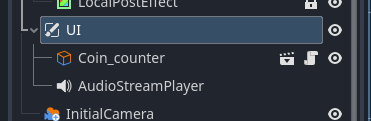
Add a new node, ImageGauge. Objects that you want to always display without being affected by camera scrolling in UI, etc., should be created under the UI node.
Set the ImageGauge properties as follows. Set sampleplayer’s hp as the current value and sampleplayer’s max_hp as the maximum value. Note that Object_Sampleplayer.tscn is located in the sampleobject folder.
Continue by setting the TextureProgressBar properties of ImageGauge. Enable Nine Patch Stretch and set Left Limit: 10px, Right Limit: 10px. This allows you to scale the created bar without distorting its aspect ratio.
Set the texture for ImageGauge. Use the image located in the file system templates > objects > ui > interface > variation_02_Ornate. Set I_002_hp_horizontal_02.png for Under and I_002_hp_horizontal_03.png for Progress.
Let’s try a test play. If set up correctly, the HP will be displayed as a white bar, and it should decrease when hit by a zombie.
Finally, let’s add a frame. Add a new node NinePatchRect as a child of ImageGauge. This is a node used to create a rectangle with Nine Patch Stretch enabled.
Bar Types
You can create various types of bars by changing the FillMode of ImageGauge. Vertical bars and circular bars can also be created.
Additionally, you can change the color of each bar using the Tint property.
About Nine Patch
This is a technique that divides an image into nine sections and adjusts the scaling rate according to the division points to prevent distortion of the aspect ratio. It can also be used for message windows, etc.