Try running a test play. If configured correctly, the title scene should appear, and pressing the A button or the Z key should transition to the game scene.
About Test Play When Multiple Scenes Exist
By pressing the icon near the Test Play button or the F6 key while a specific scene is open, you can run the current scene.
However, in this state, scene transitions may not work correctly. Therefore, if you want to test including scene transitions, we recommend setting the scene you wish to test as the Start Scene in the Scene Transition tab.
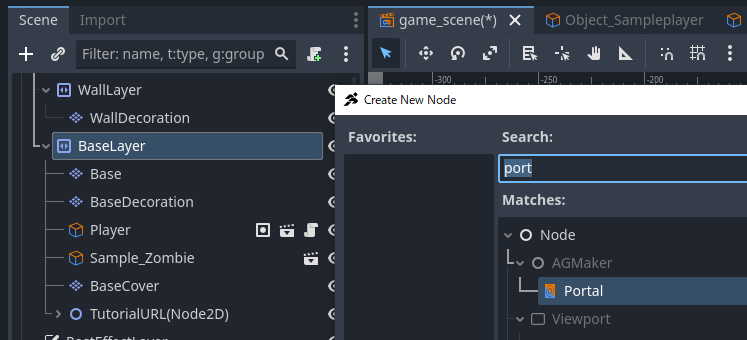
Move the Portal’s coordinates to the right edge of the stage. At this time, please move the Portal node itself, not the PortalCollision. The position of the Portal node will be the destination.
The PortalCollision is too large, so let’s reduce its width. If it’s too big, collisions might trigger unexpectedly.
Correct the position of PortalCollision. After moving through the portal, the size of the portal collision was changed, so it should be misaligned. In this image, the collision is on the right side of the Portal node, so move it to the left side.
Change the portal properties. Change the input condition from right to left, and set game_scene.tscn as the target scene. Then, you can select the portal in game_scene; select it.
Let’s test play. If configured correctly, you should be able to freely move between the two scenes.
Conclusion
That concludes the content of the Script Course tutorial.
The content explained in the tutorial is only basic.
In ACTION GAME MAKER’s visual scripting, various movements can be created by combining conditions and actions.
Depending on your creativity, someone might create something our development team never imagined.
If you come up with ideas, please share them on SNS or in the guild.
If you want to take other courses, check here
1. Graphics Course
This course is for those who want to animate characters they have drawn.
3. Expression Enhancement Course
This course is for those who want to add cool, Godot-style expressions.



 icon near the Test Play button or the F6 key while a specific scene is open, you can run the current scene.