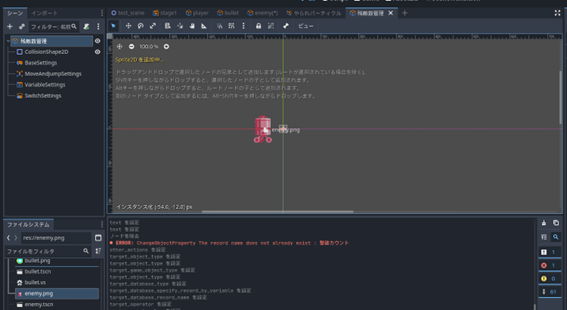
Let’s create a UI object for “Remaining Enemies Management”
We will create a UI object to manage the number of remaining enemies.
This object will display the “current value of remaining enemies” and trigger a clear effect when the value reaches 0. For clarity, display the variable “Remaining Enemies” via an action next to the “Enemy Icon” shown using Sprite2D. The enemy sprite image can be used directly as the enemy icon image.
-
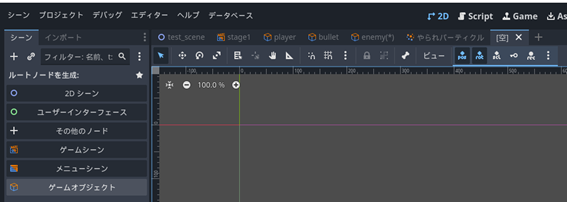
Switch the editor view to “2D”.
-
Open a new scene tab and create a root node: specify “Game Object”.
-
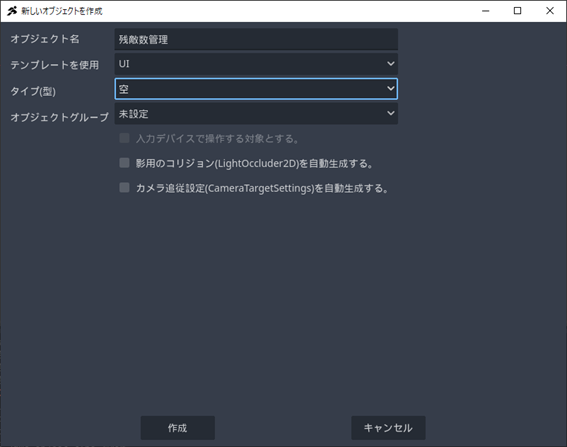
Set the object name to “Remaining Enemies Management”, set “Use Template” to “UI”, set “Type” to “Empty”, and then press the Create button.
- Once created, save it.

-
Drag and drop “enemy.png”, which is used for the enemy sprite image, from the “File System” to the space to the left of the origin (the point where the red and green lines intersect) in the editor view.
-
A Sprite2D named “Enemy” will be added automatically. In Godot Engine, placing an image file directly onto the editor view automatically generates a Sprite2D node and sets it as a texture.