The Area Value tile effect in ACTION GAME MAKER is a feature that automatically updates the object’s variable with the current area ID (stayed_area_id) of the tile it is touching.
In other words, by specifying settings on the tile side in advance, the object can recognize the ID of the tile it is currently touching (or overlapping).
For more information on tile effects:
As stated in the manual, please note that enabling tile effects on the GameObject of the object intended to receive the effect and specifying the target group on the tile effect side are mandatory.
Idea for Pass-Through Platforms
For specific area variables, you can create a process where collision is temporarily disabled when the down key is pressed. This allows the object to pass through only specific platform tiles.
Tile Side Settings
- Prepare the tile you wish to use as a platform.
- Set the collision type to “Touch” and specify the group.
- Enable the platform’s area variable and set an arbitrary value.
- (Optional) Enable “OneWay” located in Physics > Physics Layer > Polygon. If you set the direction to “Up,” you can configure it so that passing through is possible only from bottom to top.
- Tile settings are complete. Passing through from top to bottom must be configured on the object side.
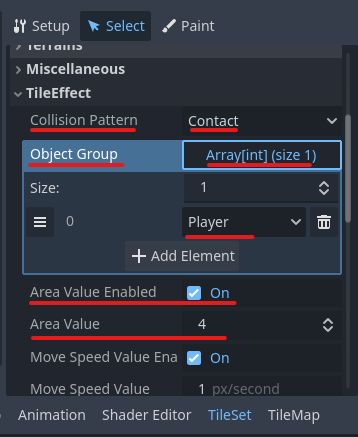
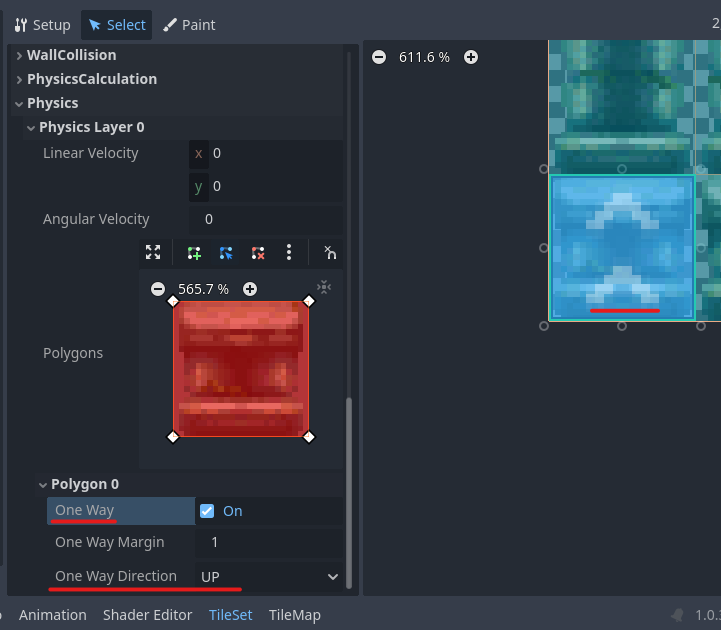
Object Side Settings
- Open the Visual Script for the object you wish to configure.
- Create a new state for passing through.
- Set the transition condition from the idle motion to the new state as: “When the object’s own variable Area_id matches the specified value AND the down direction input is pressed.”
- In the new state, configure three actions to modify the object’s properties:
① Enable the “Disabled” property of the Wall Collision (CollisionShape2D).
② Insert a 0.3-second wait.
③ Disable the “Disabled” property of the Wall Collision (CollisionShape2D).
With this, the wall collision disappears for 0.3 seconds, allowing the object to fall through the platform following gravity. - Set the transition from the new state to the falling motion action after 0.3 seconds have elapsed.
With these settings, you can implement functionality where the object passes through only when standing on specific platform tiles and the down key is pressed.
- If the pass-through gets stuck, try adjusting the wait time to be longer.
- If creating a dedicated pass-through motion, you can also handle the enabling/disabling of the wall collision via animation player keys. In that case, be careful not to transition before the enabling process is complete.
Ladder Idea
This is generally the same concept as the platform idea.
For specific area variables, you can achieve this by setting it so that gravity is disabled and the character climbs when the up key is pressed.
Tile Side Settings
- Prepare the tile you wish to use as a ladder.
- Set the collision type to “Touch” and specify the group.
- Enable the ladder’s area variable and set an arbitrary value.
Object Side Settings
- Open the Visual Script for the object you wish to configure.
- Create a new state for climbing the ladder.
- Set the transition condition from the idle motion to the new state as: “When the object’s own variable Area_id matches the specified value AND the up direction input is pressed.”
- In the new state, disable gravity. Then, specify the action “Move in Specified Direction” to move upwards (270 degrees).
- Set the transition condition from the new state as: “When the object’s own variable Area_id is not equal (!=) to the specified value OR there is no input.”
With these settings, the character climbs while the up arrow key is held down, and the ascent stops when the input is released or when the top is reached and the Area_id changes to a different value.
- If you set the transition condition to “while the up direction input is held,” the character will climb infinitely until the key is released.
- To allow the character to stand naturally after reaching the top, place a tile with the OneWay setting at the top of the ladder or install a separate CollisionShape2D.
- If you want the character to stop midway up the ladder, prepare a stop state with gravity disabled and link it from the new state. If you want to resume by pressing the up key, return to the new state; if you want to cancel, transition to the Fall state for more natural behavior.