-
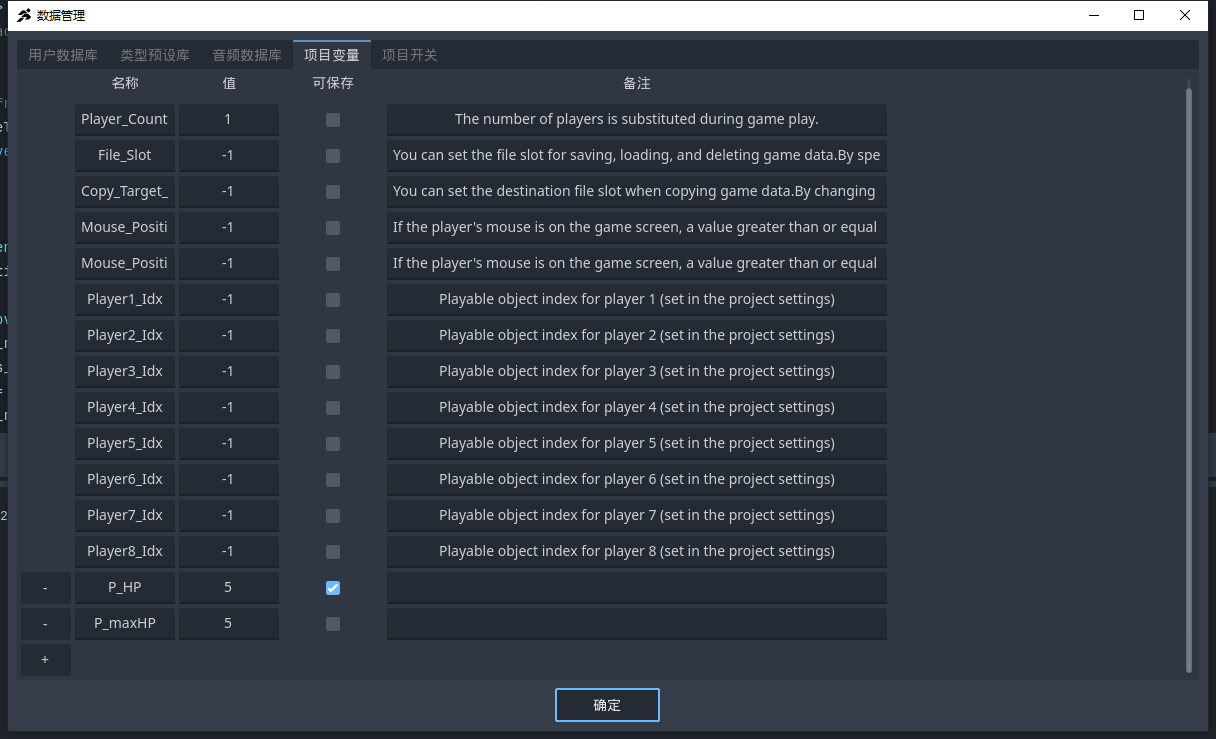
Open the project database, and under Project Variables, create a new variable named P_HP, and set its value to the character’s full health.
Then create another variable named P_maxHP, and set its value to the character’s maximum health.
Check “Saveable” for P_HP, but leave it unchecked for P_maxHP.
(You may name these two variables as you prefer.) -
Under the UIObjectRoot in the scene, create a new ImageGauge node.
-
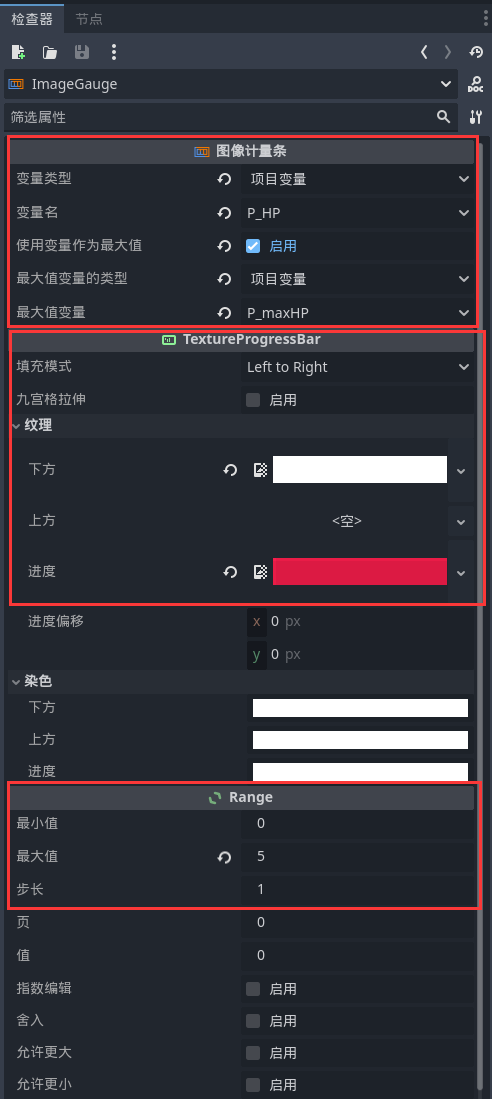
Click the ImageGauge node to open its Inspector. In the Inspector on the right, under the Image Gauge properties, set the Variable Type to Project Variable, select P_HP as the Variable Name, check “Use Variable as Maximum Value,” set the Maximum Value Variable Type to Project Variable, and select P_maxHP as the Maximum Value Variable.
Scroll down in the Inspector. Under the TextureProgressBar Texture properties, place the texture for empty health into the [Bottom] field, and the texture for full health into the [Progress] field.
Scroll further down. In the Range section below, keep the Minimum Value at 0, set the Maximum Value to the character’s maximum health, and enter the amount of health deducted per hit in the Step field.
-
In the character’s vs script, within the state where the character takes damage and loses HP, add an executable action. Select [Switch/Variable] → [Change Switch/Variable/Object Property].
In the detailed settings on the right for [Change Switch/Variable/Object Property], set the Target Object Type to Project Database, the Kind to Project Variable, the Entry Name to P_HP, the Calculation Formula to =, the Object Type for Calculation to Object Variable, the Object Type to Self, and the Property Name to hp.
-
At this point, the HP UI effect is implemented. Adjust the position and style of the HP display in the scene according to your preference.
4 Likes
(Post deleted by the author)