マニュアル:アニメーションセットの詳細設定
本マニュアルでは、ビジュアルスクリプトで使用するアニメーションの詳細設定方法について説明します。
アニメーション設定の手順
- AnimationPlayer ノードでアニメーションデータを作成します。
マニュアル: AnimationPlayerノードの活用 - Game Object ノードでアニメーションセットを作成し、作成済みのアニメーションを割り当てます。
- ビジュアルスクリプトの State(状態) で再生するアニメーションセットを指定します。
なぜアニメーションセット(AnimationSets)が必要なのか?
ACTION GAME MAKER のアニメーションシステムは、
キャラクターの表示方向に応じて、自動的に再生するアニメーションを切り替えるように設計されています。
そのため、各アニメーションセットでは最大で 8方向 に対してそれぞれ異なるアニメーションを指定できます。
アニメーションセット(AnimationSets)設定画面
Game Object ノードを選択し、Inspector で
AnimationSets > Animation And Directions を展開すると、詳細設定画面が開きます。
各項目の説明
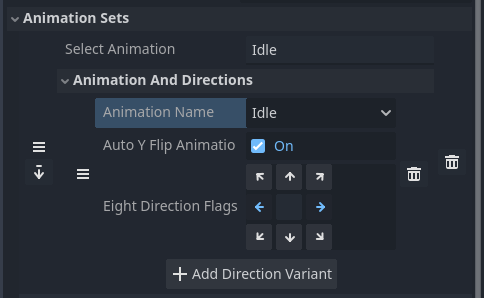
アニメーション分類名(Select Animation):
ビジュアルスクリプトで表示されるアニメーションセットの名称です。
アニメーション(Animation Name):
ここで、AnimationPlayer で作成したアニメーションデータを選択します。
自動Y軸反転(Auto Flip Animation):
有効にすると、左右の表示方向に応じてオブジェクト全体を自動で反転します。
右向きのアニメーションのみを作成し、反転させて左向きのアニメーションとして表示したい場合に便利です。
表示方向設定(Eight Direction Flags):
どの表示方向でこのアニメーションデータを使用するかを指定します。
上図の例では、
キャラクターが右または左を向いているときに Idle アニメーションを使用します。
自動Y軸反転が有効なため、左を向いているときはアニメーションが自動で反転して表示されます。
アニメーション一括読み込み(Bulk Load Animations)
アニメーション一括読み込みは、
一般的な横画面(Side View)向けのキャラクターアニメーションに適した設定を自動で行うボタンです。
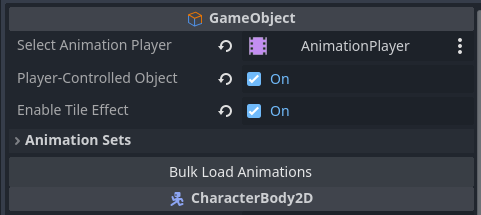
この機能は、AnimationPlayer に登録されたすべてのアニメーションを、以下のルールに従って自動的に追加します:
- アニメーション分類名(Select Animation): アニメーションデータと同じ名前
- 自動Y軸反転(Auto Flip Animation): 有効
- 表示方向設定(Eight Direction Flags): 左 / 右
この設定が適用できない場合(例:トップビュー Top View)、手動でカスタマイズする必要があります。
アニメーションセットカスタマイズ例(横画面視点)
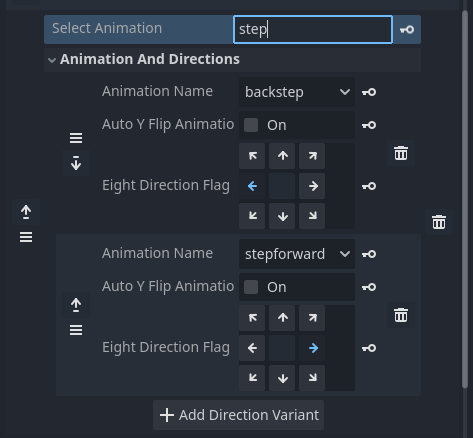
前方回避 / 後方回避で異なるアニメーションを使いたい場合
自動Y軸反転を無効にし、
以下のようなアニメーションをそれぞれ作成・登録します:
- 左に移動する後方回避アニメーション(backstep)
- 右に移動する前方回避アニメーション(stepforward)
アニメーションセットカスタマイズ例(トップビュー)
トップビューで8方向それぞれにアニメーションを割り当てたい場合
自動Y軸反転を無効にし、
8方向それぞれに対して移動アニメーションを作成・登録します。
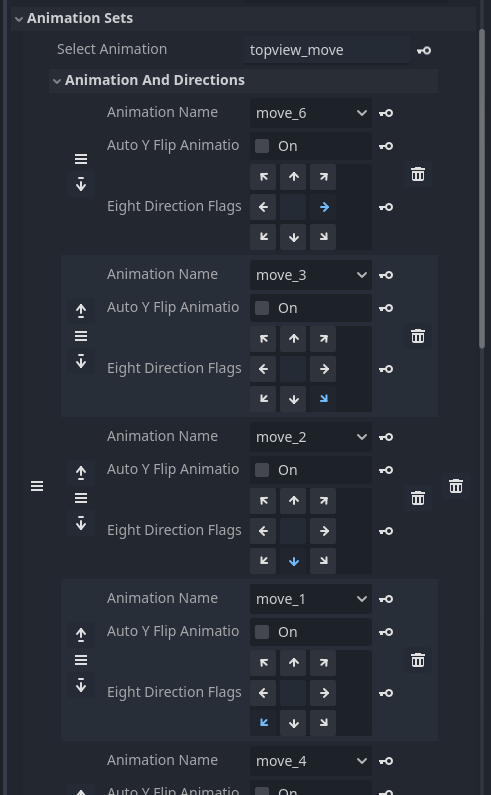
このとき注意してください:
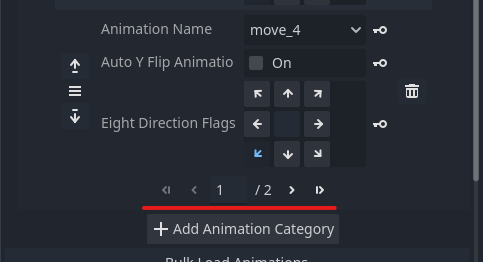
表示項目数が多いため、システムが自動的にページ分割して切り替えを行います。
通常、1ページあたり最大 5方向 が表示されます。
下部のページ切り替えボタンでページを切り替えることができます。