Tutorial: “Getting Started with ACTION GAME MAKER from Zero” – Chapter 4

Chapter 4: Let’s Make It a “Game”

In the previous chapter, we completed the basics of gameplay by allowing the player to shoot bullets and defeat enemies.

In this chapter, we’ll take it further and make the project into something that can actually be played as a game.

What’s Missing to Make It a Game?

In the current version, the player can move and enemies exist, but several elements are still missing.

  • The stage is too small, so we need to expand it.

  • The player has a damage reaction but cannot actually be defeated. We also can’t see how much HP the player has left, so we need to make that visible.

  • Finally, there is no goal to the game. Ideally, we would include a boss battle, but for now we’ll keep it simple: defeating 5 enemies will clear the game.

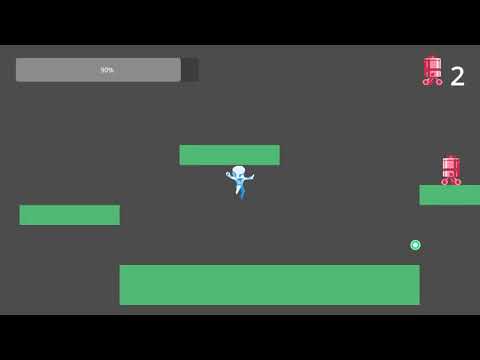
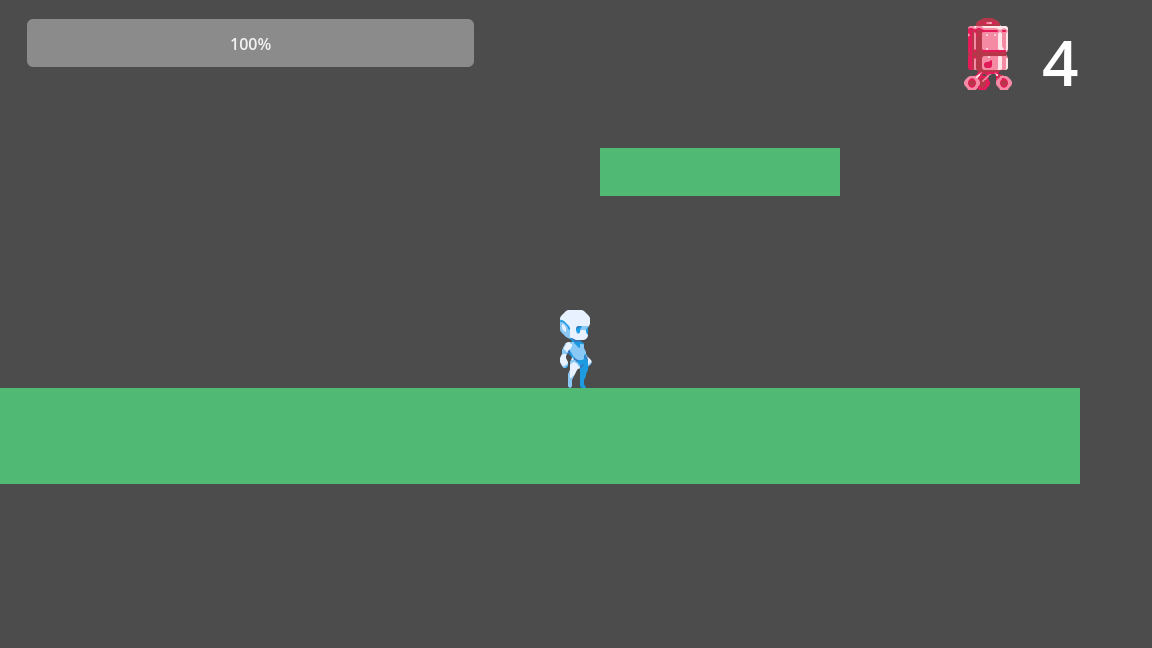
Completed Example

Expand Stage1

First, let’s extend the stage by painting more tiles. Since the stage will become larger, the player will eventually move outside the camera’s current range, so we’ll also need to make sure the camera follows the player.

Paint More Tiles

The tiles were created using the Base (TileMapLayer) node, so let’s use this node to expand the stage.

  1. Switch to the stage1 scene tab.

  2. In the Scene window, select the Base (TileMapLayer) node.

  3. In the bottom window, open the TileMap tab and select a tile.

  4. Place tiles freely in the space to the right. To keep the stage balanced:

    • Platforms and walls in the air should be no higher than 4 tiles.

    • Gaps or pits should be about 4 tiles wide or less so they can be jumped over easily.

Once you’ve laid out enough tiles, move on to the next step.

Make the Camera Follow the Player

Camera following in ACTION GAME MAKER is controlled using a system called Target ID. Do you remember when we created the player and added the CameraTargetSettings node? That node has a property called Target ID.

The camera node, ZoomCamera2D, also has a Target ID property. When both the camera and a game object share the same Target ID, the camera is designed to follow that object automatically.

Let’s configure the Target ID for both the ZoomCamera2D and the player’s CameraTargetSettings.

Set the Target ID for InitialCamera (ZoomCamera2D)

  1. In the Stage1 scene tab, select the InitialCamera (ZoomCamera2D) node.

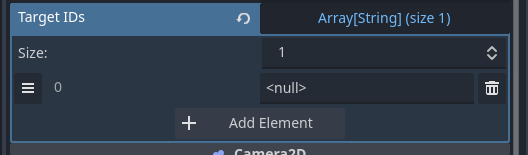
  2. In the Inspector, expand the Target ID (Array…) property.

  3. Click the + Add Element button.

  4. A text field will appear. Delete the placeholder text and enter player.

Add the Target ID to the Player’s CameraTargetSettings Node

  1. Switch to the player scene tab.

  2. Select the CameraTargetSettings node.

  3. In the Inspector, enter player in the Target ID field.

Test the Expanded Stage

Now let’s test play the expanded stage to check if everything works correctly. Try moving the player all the way to the right edge of the stage.

If everything is set up properly, the camera should smoothly follow the player.


Checklist

  • Camera doesn’t follow: Double-check the Target ID settings in both Stage1’s InitialCamera and the player’s CameraTargetSettings.

  • Can’t reach the far right of the stage: Adjust the size of pits or the height of walls in the Base (TileMapLayer).

Add a “Death” Effect to the Player: Creating Particles

Just like the enemy, the player should also be defeated when their HP reaches 0. Since there isn’t a frame that looks suitable for a death animation, let’s use particles to create a visual effect.

What Are Particles?

Particles are essentially tiny images scattered in large numbers to create an effect. Think of something like confetti—it’s easier to imagine. With particles, you can freely adjust the appearance of each “piece” and how they move.

In Godot Engine, this is typically done with nodes like GPUParticle2D or CPUParticle2D.
In ACTION GAME MAKER, particles are handled with the ParticleObject node.

The ParticleObject comes with more than 20 particle templates you can use right away.


Create a Particle Object

Creating a particle object is exactly the same as creating a game object.

  1. Create a new scene tab.

  2. For the root node, select GameObject.

  3. Set the Object Name to DeathParticle, choose the Template as particles, and click Create.

  4. In the Scene window, select the newly created DeathParticle node.

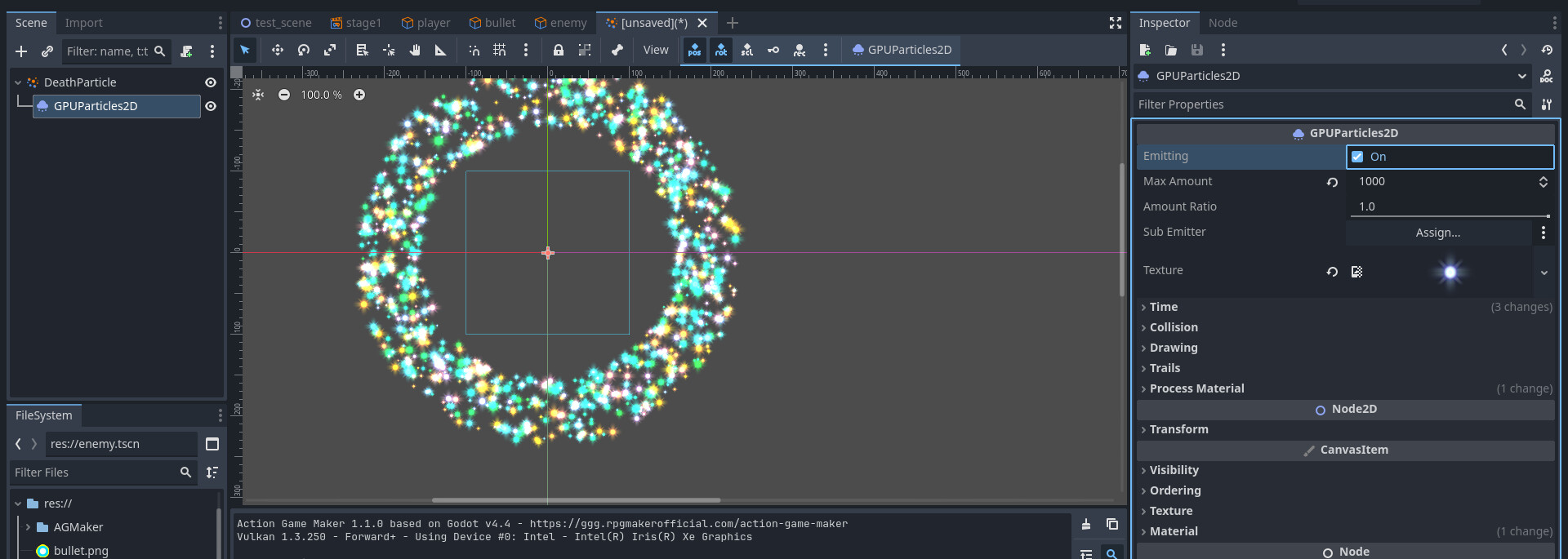
  5. In the Inspector, change the Particle Template from None to Fireworks.

  6. A GPUParticles2D node will be automatically added.

  7. In the GPUParticles2D Inspector, check the Emitting property. This enables particle emission.

  8. You should now see particles emitting in the scene view, creating a fireworks effect.
    Finally, right-click the [Unsaved](*) tab and save the scene as deathparticle.tscn.

Add a “Death” State to the Player’s Visual Script

Considering the “Death” State

When the player’s HP reaches 0, they should stop moving and emit the “Death Particle” effect.
It makes sense to connect this state from AnyState, but there’s one problem:

Currently, as shown below, the player transitions to the Take Damage state whenever they collide with an enemy attack, regardless of their state.

Since HP = 0 means the player has already been hit, they could end up transitioning into Take Damage even while in the “Death” state.

To fix this, we’ll add the condition “HP is not 0” to the Damage transition to prevent it from triggering when the player has already died.


Create the “Death” State

Since there’s no animation that perfectly fits, we’ll reuse the Damage animation. However, to make it visually distinct, we’ll also use a Filter effect so it’s clear the player is defeated.

  1. Open the Player scene.

  2. Switch the editor from 2D to Script.

    image

  3. In the upper area near the Take Damage state, right-click and Add State.

  4. Rename the new state to Death.

  5. Set the Animation to DamageTaken.

  6. Expand the Action Settings section.

  7. Enable Ignore Movement Input.

  8. Click + Add Executable Action.

  9. Select DisplayParticle.

  10. In the Particle Object path field, click the :page_with_curl: icon and select the DeathParticle.tscn created earlier.

  11. Click Add.

  12. Again, click + Add Executable Action.

  13. Select ApplyObjectFilter.

  14. Set the Filter Type to Transparent and the Finish Time to 3.0 seconds. This makes the player gradually fade out over 3 seconds.

  15. Click Add.

  16. If the Actions list looks correct, the Death state is now ready.


Link AnyState to the “Death” State

  1. Right-click AnyStateAdd Link → connect it to Death.

  2. Click + Add Other Condition.

  3. Select HPIsZero and click Add.


Add a Condition to the “Damage” Transition

Finally, we need to make sure the Take Damage transition doesn’t trigger if HP is already 0. We can do this by enabling the Is Reversed option.

  1. Select the link from AnyState → Take Damage.

  2. Click + Add Condition.

  3. Choose HPIsZero.

  4. Enable Is Reversed. This changes the condition to “HP is not Zero.

  5. If the Other Conditions panel shows the inverted condition (≠ icon highlighted), the setup is correct.


Test the “Death” State

Now let’s test it. Since the player’s initial HP is set to 1, they should enter the Death state after just one enemy attack.

If everything is set up correctly:

  • When hit, the Death Particle effect should appear.

  • The player should gradually fade out.

  • After defeat, press F5 to reset the game.


Troubleshooting

  • Particles don’t appear: Check the DeathParticle.tscn and the DisplayParticle action.

  • Player doesn’t fade: Review the ApplyObjectFilter action settings.

  • Damage reaction still triggers after death: Double-check the link conditions and the inverted condition on the TakeDamage transition.

Create an HP Bar

Right now, getting knocked out in a single hit is too harsh, so let’s increase the player’s HP.
But if the player has more HP, we’ll also need a way to display how much remains. For that, we’ll create an HP Bar.

In ACTION GAME MAKER, you can display gauges using the SimpleGauge or ImageGauge nodes. For this tutorial, we’ll use SimpleGauge.

Since the camera now moves with the player, placing the HP Bar in the same layer as the player would cause it to move out of view. For always-visible elements like HP Bars, you should use the UI layer.


About the UI Layer

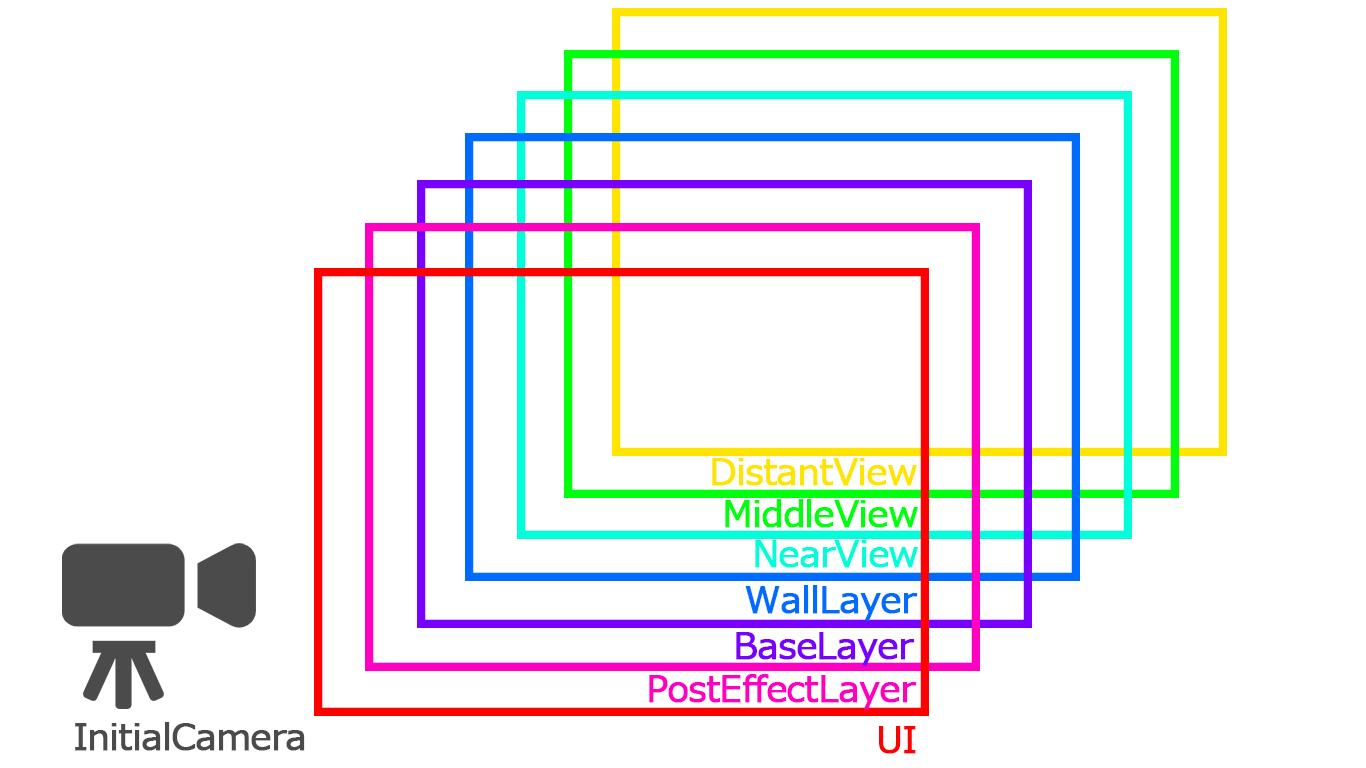
You may recall from earlier that ACTION GAME MAKER layers are structured as follows. The UI layer and the Screen Effect layer are special layers not affected by the camera.

This means that anything placed in the UI layer will always remain visible, making it perfect for the HP Bar. The Screen Effect layer, on the other hand, is reserved for special effects triggered by actions, so we’ll use the UI layer here.


Set the Player’s HP and Max HP to 10

  1. Select the BaseSettings node of the player.

  2. In the Inspector, change both HP and Max HP values from 1 to 10.


Add and Configure a SimpleGauge Node

  1. Switch to the stage1 scene tab and change the editor view back from Script to 2D.

    image

  2. Select the UI node.

  3. Click the + (Add Child Node) button in the top-left of the Scene window.

  4. Select SimpleGauge and click Create.

  5. Adjust the size. At first, it will appear squashed.

  6. Drag the orange handles to expand it to a suitable size (see reference image in the tutorial).

  7. The visible range of the UI layer is marked by thin blue lines. Move the gauge to the top-left corner inside this boundary.

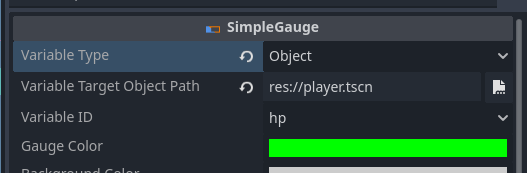
  8. Next, link the gauge to the player’s HP. In the Inspector, set Variable Type to Object.

  9. A new property will appear: Specify Target Object Path. Click the :page_with_curl: icon.

  10. Select player.tscn and click Open.

  11. The Variable Name field should automatically show hp. This specifies which variable to use as the current value, so leave it as-is.

  12. Enable the Use Variable as Max Value checkbox.

  13. Repeat steps 9–10 to specify player.tscn again.

  14. In the Max Value Variable field, it may default to object_id. Change this to max_hp. This tells the gauge to use the player’s maximum HP as its maximum value.


Test the HP Bar

Click the Test Play button to run the game. If everything is set correctly:

  • The HP Bar will display in the top-left of the screen.

  • When the player takes damage, the HP Bar will decrease accordingly.


Troubleshooting

  • Gauge not visible: Make sure the SimpleGauge is a child of the UI layer and positioned inside the blue boundary.

  • HP starts low: Double-check that the Player’s HP is set to 10 in BaseSettings.

  • HP instantly drops to 0 even with Max HP: Confirm that Max HP is set to 10 in BaseSettings and that the SimpleGauge’s Max Value Variable is correctly set to max_hp.

Set Up “Fall Death”

You may have noticed during test play that when the player falls into a pit, they just keep falling forever. Let’s fix this by making the player “defeated” when falling into a pit.

The solution is to limit the camera’s movement range so it doesn’t chase infinitely downward, and then set the player to enter the “Death” state when leaving the camera’s range.


Restrict the Movement Range of InitialCamera (ZoomCamera2D)

  1. Select the InitialCamera node.

  2. In the Inspector, expand the Limits section.

  3. Change the Bottom limit value from 10000000 to 500.

    • This ensures the camera will only move 500 pixels below the red origin line.
  4. Run a test play.

    • If set correctly, the camera will still follow the player horizontally and upward, but will stop following downward past a certain point.

Troubleshooting

  • Camera shows nothing:
    The tiles may be offset from the origin (the intersection of the red and green axes). Try adjusting the camera’s bottom limit to values like 1000 or 2000 until it aligns properly.

Add Fall Defeat to the Player’s Visual Script

Since the “Death” state already exists, we only need to add a new condition to the existing link: “OffScreen.”

  1. Switch to the Player scene and change the editor view to Script.

  2. Select the link from AnyState → Death.

  3. Click + Add Condition.

  4. Select the condition OffScreen.

  5. Change the Data Type from Unset to This Node.

  6. Set the Connection With Previous Condition to OR, then add it.

  7. Confirm that the condition list now correctly shows:


Test Fall Death

Run a test play and fall into a pit.
If set correctly, when the player falls out of the camera’s range, the fireworks particle effect should play, signaling defeat.


Troubleshooting

  • Fall defeat doesn’t trigger:
    Check the conditions on the AnyState → Death link. Make sure they read: HP = 0 OR OffScreen.

Thinking About “Clear the Game by Defeating 5 Enemies”: Handling Variables

We’ll need some way to count down from the number 5. Each time an enemy is defeated, this number should decrease, and when it reaches 0, the game should trigger a clear event. To achieve this, we’ll use something called a variable.


What Is a Variable?

A variable is like a container that stores a value. For example, the player’s HP (health) we worked with earlier is actually a variable. When the player is hit by an enemy attack, the value inside the HP container decreases by 1.

In ACTION GAME MAKER, there are two main ways to define variables:

  1. Using the VariableSettings node on an object.

  2. Using the project-wide Project Variables database.

The HP we used earlier is an example of the first type.


The Difference Between Object Variables and Project Variables

  • Object Variables (VariableSettings): Variables tied to a specific object. If the object is removed, the variable disappears as well.

  • Project Variables: Global variables that can be accessed anywhere in the project. They remain available as long as the project is running, and are useful for things like saved data.

In practice:

  • HP, Attack Power, Jump Force → Best handled as Object Variables.

  • High Score, Coin Count, Lives → Best handled as Project Variables, since they persist across multiple stages and should be shared across the whole game.


Which Variable Should Track “Remaining Enemies”?

Technically, either type would work. However, since multiple objects (the enemies) will interact with this number, we’ll use a Project Variable.

So the flow will be:

  • When an enemy enters its “Vanish” state → Decrease the “Remaining Enemies” count by 1.

  • When “Remaining Enemies” reaches 0 → Trigger the game clear sequence.


How to Implement the Clear Sequence

We’ll create a special game object dedicated to handling the kill count. This object will be placed in the UI layer so it is always visible. Like the HP bar, it will display the number of defeated enemies so the player knows how many are left to clear.

The steps will be:

  1. Create the Project Variable “Remaining Enemies”

  2. Add an action to the enemy’s “Vanish” state that decreases the Kill Count.

  3. Create a Clear Event Object in the UI layer that monitors “Remaining Enemies” and triggers the clear sequence when it reaches 0.

Add “Remaining Enemies” as a Project Variable

Project Variables are found inside the Database. Let’s add one now.

  1. Click the Database button in the top-left menu.

    image

  2. A new window called Data Management will open.

  3. Switch from the User Database tab to the Project Variables tab.

  4. Click the button in the upper-left corner of the window.

  5. A new row named variables1 will appear at the bottom. Rename it to Remaining Enemies.

  6. Set its Value to 5.0, since we want the player to defeat 5 enemies.

  7. Click OK to close the window. Setup is complete.

Add an Action to the Enemy’s “Vanish” State

In ACTION GAME MAKER, you modify variables using the Change Property action.
Since you can perform the basic arithmetic operations (add, subtract, multiply, divide), we can implement our logic as: Remaining Enemies –= 1.

  1. Open the enemy scene tab and switch the editor view to Script.

  2. Select the Vanish state and click + Add Executable Action.

  3. Choose ChangeObjectProperty.

  4. Configure the fields as follows:

    • Target Object Type: Project Database

    • Database Type: Project Variable

    • Record Name: Remaining Enemies

    • Expression: -=

    • Constant Value: 1

    There are five fields to set—double-check each one.
    With this action, the project variable Remaining Enemies will be decreased by 1.

  5. Finally, reorder the execution actions. Actions run from top to bottom, so if Vanish Self executes before Change Property, the variable won’t be updated.

    • Drag the hamburger (three-line) icon next to Change Property and move it to the top so Change Property runs first.


Why use -= instead of just -?

In programming, -= is a shorthand operator meaning:

new_value = previous_value - 1

It both subtracts and assigns the result back to the variable in one step.
If you used only - (minus) without the =, it would not specify where to store the result, so the variable wouldn’t actually change.

Create the UI Object “Remaining Enemies Manager”

We’ll make a UI object to manage the Remaining Enemies variable.

This object will display the current value of “Remaining Enemies” and trigger a clear sequence when the value reaches 0. For clarity, we’ll show the enemy’s icon (via Sprite2D) with the Remaining Enemies variable displayed next to it using an action. For the enemy icon, we can simply reuse the existing enemy sprite image.

  1. Switch the editor view to 2D.

  2. Open a new scene tab, and for the root node select GameObject.

  3. Set Object Name to RemainingEnemiesManager, choose Template: UI, and Type: Empty, then click Create.

  4. Save the newly created scene.

  5. From the FileSystem, drag enemy.png (the sprite used by the enemy) into the empty space just to the left of the origin (where the red and green axes intersect) in the editor view.

  6. A Sprite2D named Enemy will be added automatically. In Godot, when you drop an image file directly into the editor viewport, it auto-creates a Sprite2D node and assigns the texture for you.

Configure the “Remaining Enemies Manager” Visual Script (Display the Variable)

First, let’s focus only on displaying the variable. We just need a single state, “Count,” that shows the value of the Remaining Enemies variable.

To display a variable, use the DisplayText action.

Create the “Count” State

  1. In the Scene window, select RemainingEnemiesManager(Game Object) node and click :page_with_curl:+ (Attach Script).

  2. Create RemainingEnemiesManager.vs.

  3. Rename the default State001 to Count.

  4. Add the DisplayText execution action and configure the Basic Settings as follows:

    • Text Type: Variable

    • Variable Source: Data Management

    • Database Type: Project Variables

    • Record Name: Remaining Enemies

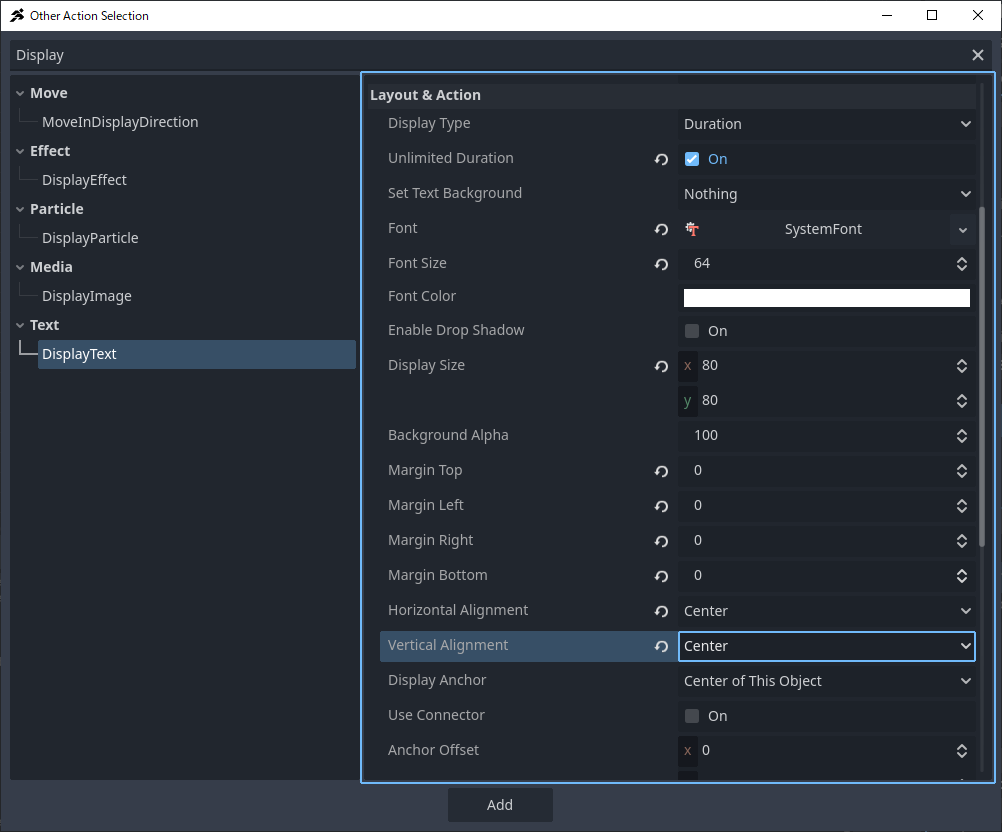
  5. Configure the Layout & Action section as follows:

    • Unlimited Duration: On

    • Font: New SystemFont

    • Font Size: 64

    • Display Size: x = 80, y = 80

    • Margins (Top/Left/Right/Bottom): all 0

    • Horizontal Alignment: Center

    • Vertical Alignment: Center

Note: About placement in the “DisplayText” action
This action creates a text box of the specified size centered on the reference point, then displays the specified text (variable) inside it for the duration you choose.
When the reference point is “This object’s center,” it means the origin (the point where the red and green axes intersect).
In this setup, you’re creating an 80×80 px text box centered on the origin, aligning the text to the center, and setting the display duration to unlimited.


Test the “Count” Display

Let’s place it in the scene and test. Because we want it always visible, we’ll put it in the UI layer.

  1. Switch to the stage1 scene tab and change the editor to 2D.

    image

  2. Select the SimpleGauge node under UI (CanvasLayer).

  3. In the FileSystem, select RemainingEnemiesManager.tscn and drag & drop it to the top-right area inside the UI layer’s blue frame.

  4. Run a test play and confirm that:

    • Remaining Enemies = 5 is displayed correctly at start.

    • After defeating an enemy, the number decreases to 4.


Troubleshooting

  • Neither icon nor number appears:
    Ensure the object is a child of the UI layer and placed within the blue frame (UI display region).

  • Icon appears but number doesn’t:
    In the Remaining Enemies Manager object, confirm the icon is positioned near the origin, and double-check the DisplayText action settings in the Count state.

  • Number doesn’t change when enemies are defeated:
    In the enemy object’s Vanish state, verify the execution order is Change Property first, then Remove Self.

Create the Clear Sequence

Next, let’s build the clear sequence. We’ll use the DisplayText action for this as well.

We’ll display “STAGE CLEAR” prominently in the center of the screen to make it feel like a proper clear.
The transition condition will be when the Remaining Enemies variable reaches 0.

Set Up the “Stage Clear” State

  1. Switch to the RemainingEnemiesManager scene tab and change the editor view to Script.

  2. Near the Count state, Add State.

  3. Rename the new state to Stage Clear.

  4. Click + Add Executable Action.

  5. Choose DisplayText.

  6. Configure it as follows (there are many fields—double-check each one):

    • Text Body: STAGE CLEAR

    • Unlimited Duration: On

    • Font: New SystemFont

    • Font Size: 96

    • Display Area: x = 1200, y = 120

    • Horizontal Alignment: Center

    • Vertical Alignment: Center

    • Reference Point: Use Scene as Base

    • Anchor: Center

What does “Use Scene as Base” mean?
Instead of using this object’s position, the display is anchored to the entire game scene—that is, the region shown by the camera. In this setup, the text box (1200×120) is centered on the scene, and STAGE CLEAR is centered within that box.

  1. Right-click the Count state → Add Link → connect it to Stage Clear.

  2. Click + Add Condition.

  3. Select SwitchVariableChanged.

  4. Configure the condition:

    • Variable Type: Variable

    • Target Type: Project Variable

    • Database Record Name: Remaining Enemies

    • Variable Condition: =
      (This makes the transition occur when Remaining Enemies == 0.)


Test the Clear Sequence

First, we need enough enemies—place a total of five—then test whether the clear sequence triggers properly.

  1. Switch to the stage1 scene tab and set the editor view to 2D.

  2. Under BaseLayer, select a child node such as the enemy or player to prepare for placement.

  3. From the FileSystem, drag enemy.tscn into the stage to place another enemy.

  4. Repeat steps 1–3 until you have enemy5 placed.

  5. Start a test play.


Troubleshooting

  • “The five enemies I placed aren’t there”:
    They may have fallen offscreen. Make sure each enemy is placed on solid ground and that Don’t fall off ledges is enabled in Template Move.

  • “Nothing happens when the count reaches 0”:
    Verify the Stage Clear state’s DisplayText settings, and confirm the link’s transition condition (Project Variable Remaining Enemies equals 0) is correct.

Chapter 4 Review

In this chapter, we learned about camera following mechanics, particles, UI, and variables, allowing the game to function as a proper game.

However, as it stands, the presentation is still rather plain, and there’s no sound.

In the next chapter, Chapter 5, we’ll enhance the game’s completeness by adding sound settings, background settings, and finally exporting the project so that anyone can play it.